
Duplicates Tab
Skima AI automatically detects possible duplicate candidates and flags them for review before they are added to your database. When an uploaded resume matches an existing candidate by email, phone number, LinkedIn URL, or a combination of name, location, and company, Skima AI surfaces the match and lets you decide what to do with it.
You can either merge the new record into the existing candidate profile, combining history, notes, and tags, or add as new to keep it as a separate independent candidate if the profiles belong to genuinely different people.
During Resume Upload
The first place you will encounter duplicate detection is directly inside the upload flow, before candidates are added to your database.
Inside a Job
- Navigate to 'Jobs' from the left sidebar and open any job.
- Click the Upload icon to upload resumes.
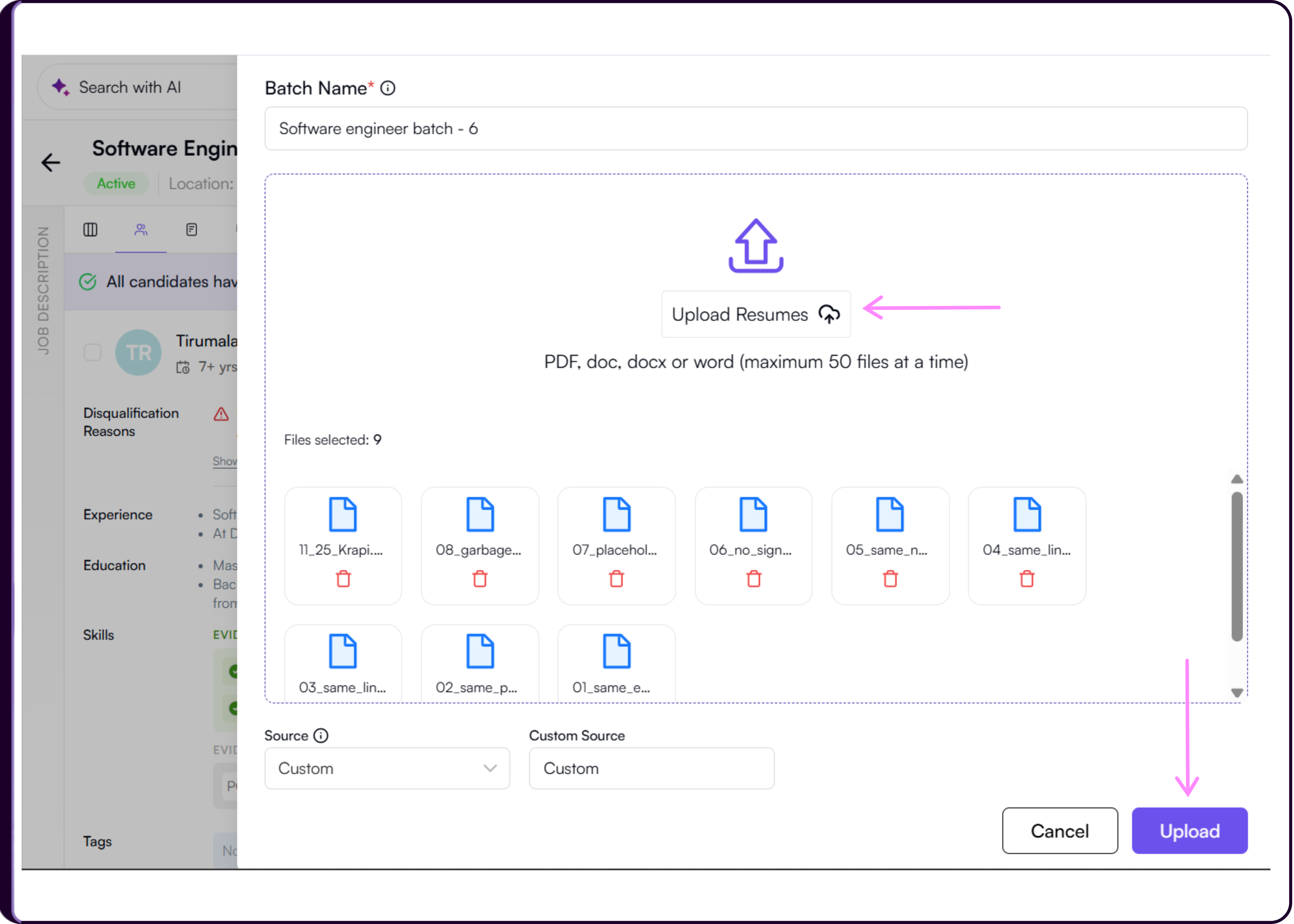
- Once files are parsed, a Review possible duplicates section appears inside the upload modal. It shows a count of how many resumes were uploaded, how many need review, and how many are ready to add.
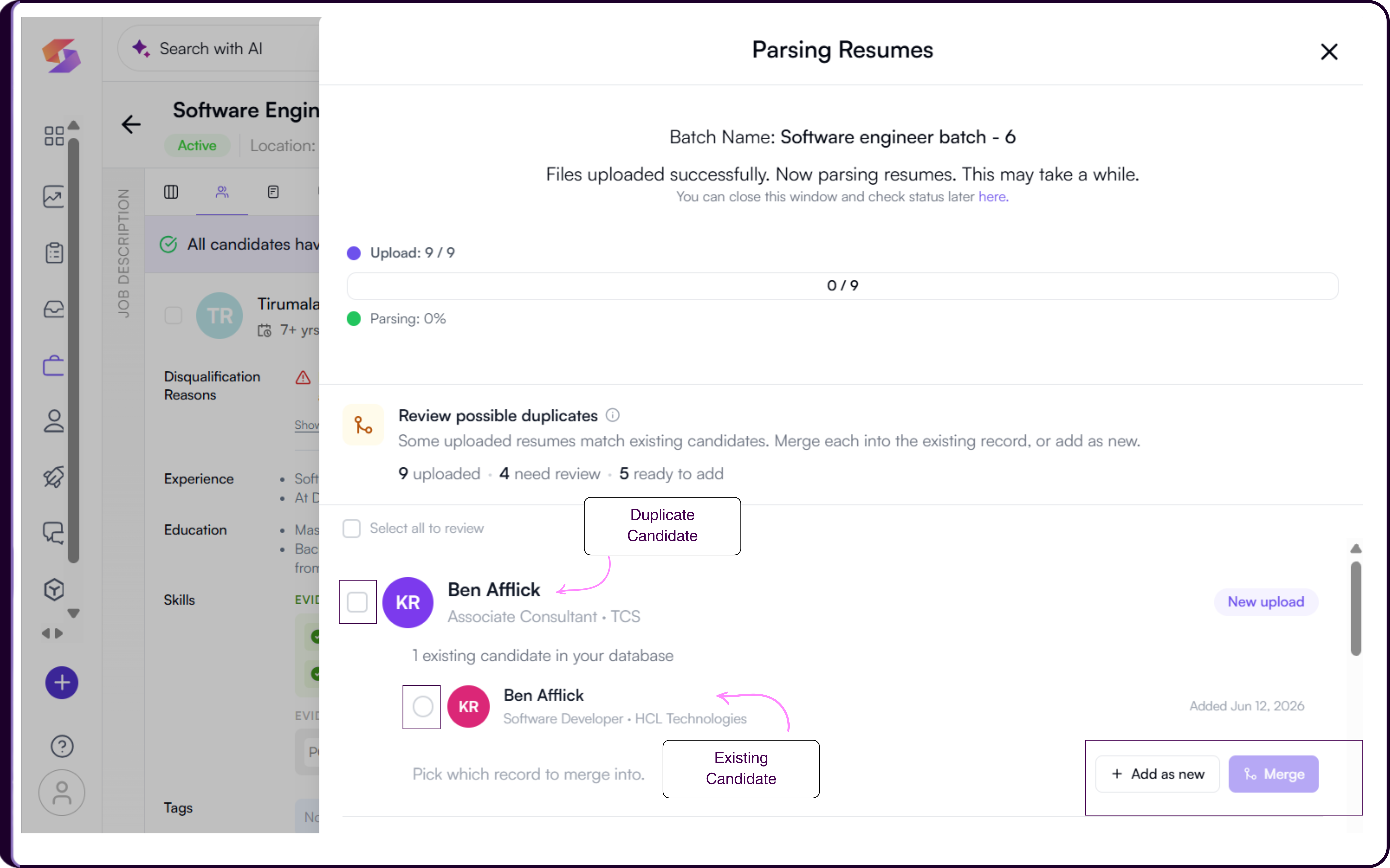
Each flagged candidate shows the new upload alongside any matching profiles already in your database. If two or three existing records match the same signals, all of them appear so you can choose the right one to act on.
Select the existing database profile you want to merge into by clicking the radio button next to it.
Click 'Merge' to open the field comparison modal, which shows differences across Name, Title, Company, Location, Email, Phone, and LinkedIn between the two records. Fields that differ are highlighted with a Differs tag.
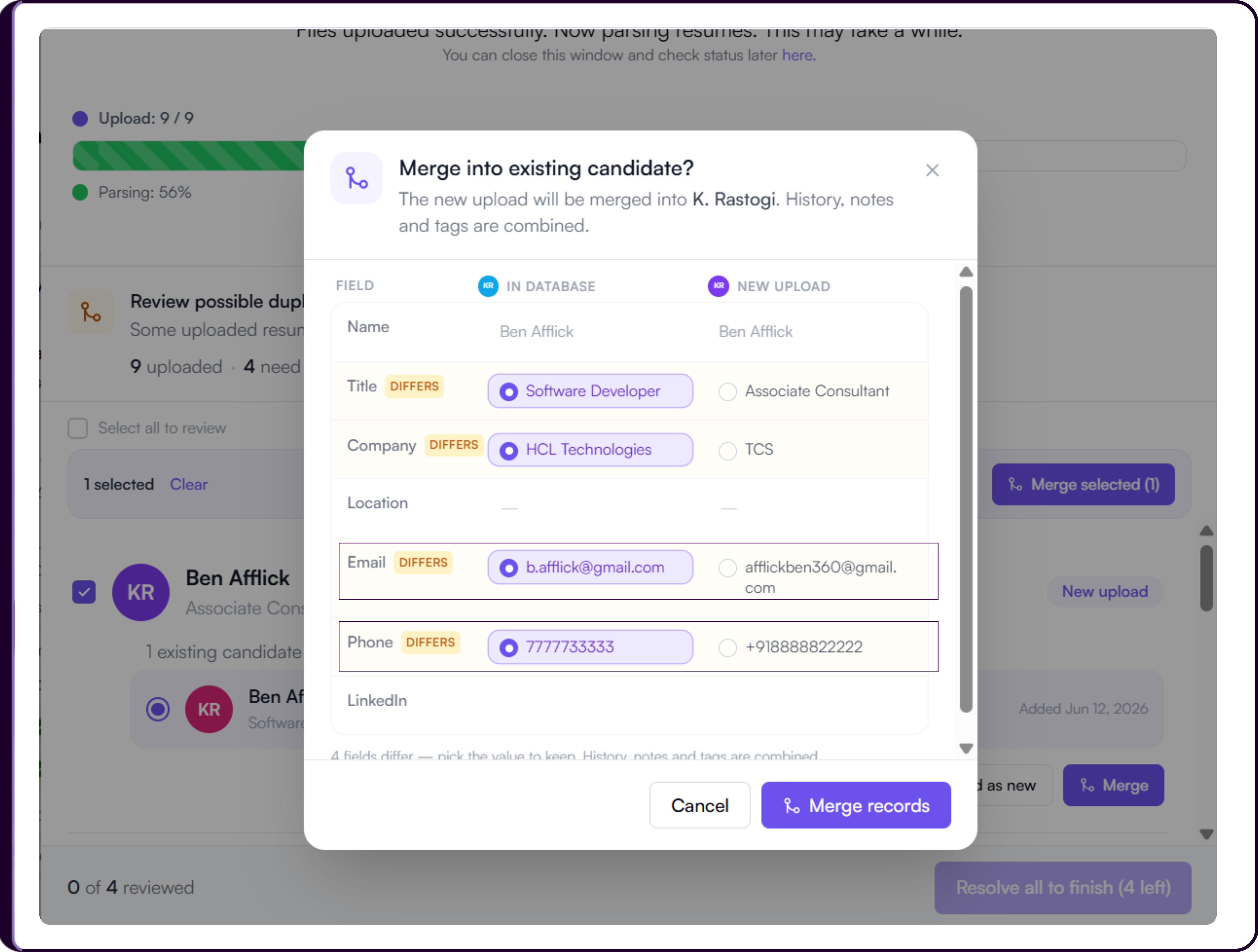
- Select which values to keep from either the existing record or the new upload, then click 'Merge records' to confirm.
- Alternatively, click '+ Add as new' to add the uploaded resume as a separate independent candidate. A confirmation modal will appear showing the candidate's name. Click '+ Add as new' to confirm.
- Once all duplicates are reviewed, click 'Resolve all to finish' to complete the upload.
From the Candidates Page
The same duplicate review flow applies when uploading resumes directly from the Candidates page. The process is identical to uploading inside a job. The difference is that candidates added here without being linked to a job are not screened until they are associated with one.
Duplicates Tab
The Duplicates tab on the Candidates page is the central workspace for reviewing and resolving all flagged duplicate cases across your database. Click on 'Candidates' from the left sidebar and then click the 'Duplicates' tab at the top.
The tab shows a count of all unresolved duplicates. It is divided into three sub-tabs.
In Database
This sub-tab shows duplicate candidates detected through ATS sync or Chrome Extension imports. When your candidate database is clean with no flagged duplicates, this view shows an empty state with the message: "No duplicates to review. Your candidate database looks clean. New duplicates appear here automatically as candidates are added."
From Uploads
This sub-tab shows all duplicate candidates flagged during manual batch uploads inside jobs or from the Candidates page.
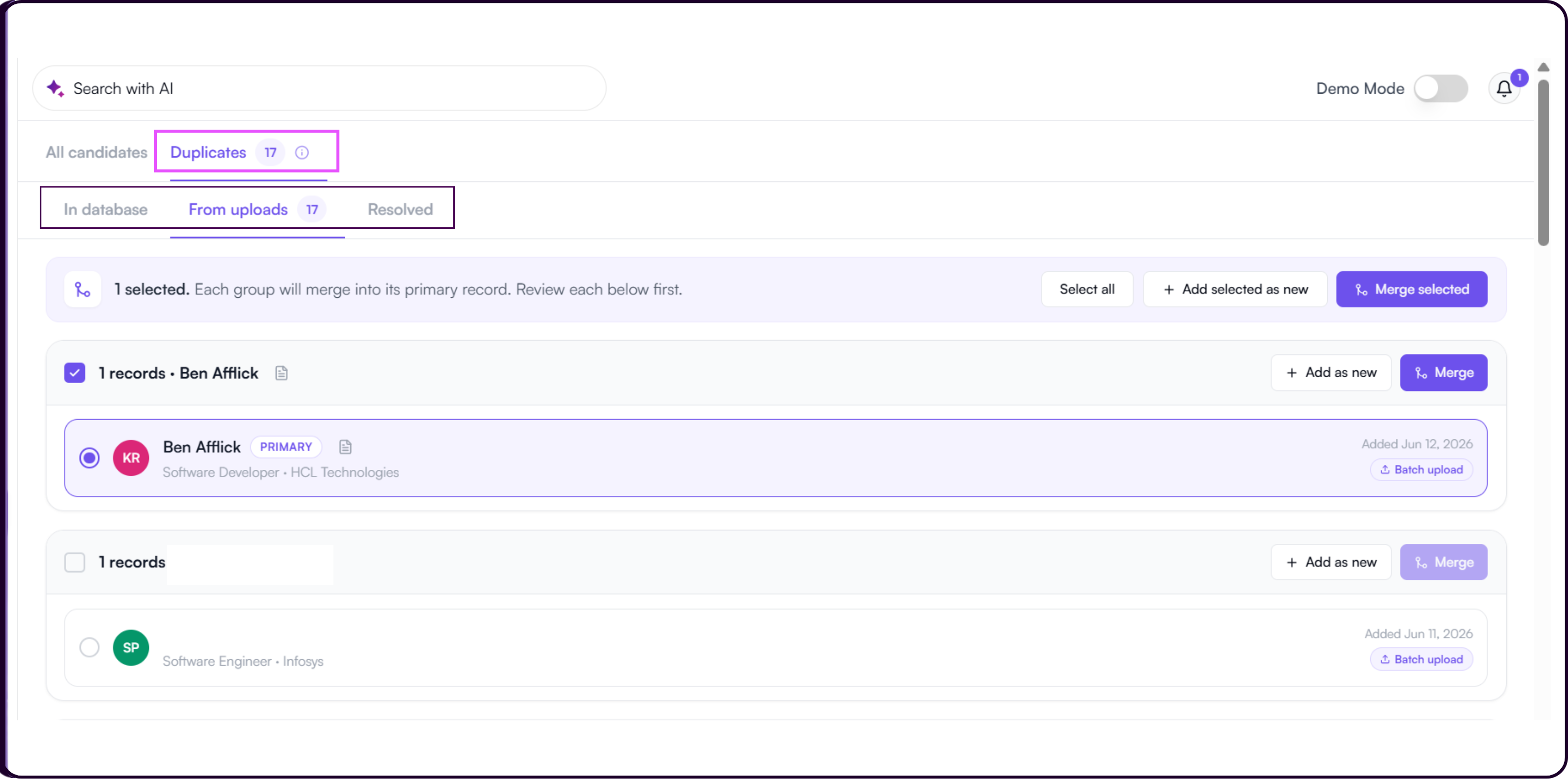
Each flagged group shows the new upload at the top with a count of how many existing records it matches against in your database. The existing database records appear below it with their upload date and source tag.
To resolve a duplicate individually:
- Select the existing database profile to merge into by clicking the radio button next to it.
- Click 'Merge' to open the field comparison modal. Review the differences, select which values to keep, and click 'Merge records' to confirm.
- Or click '+ Add as new' to create a separate candidate entry.
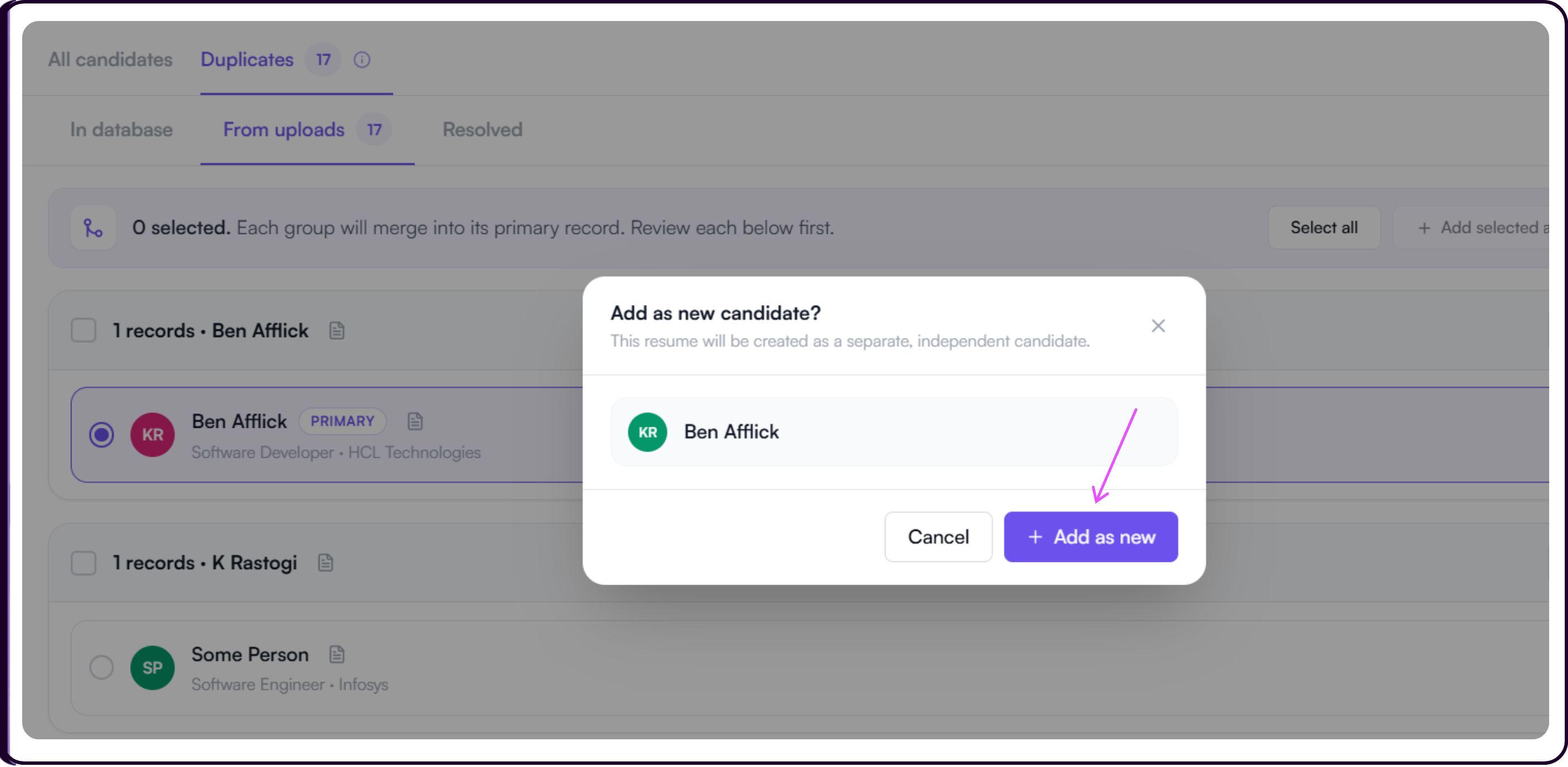
To resolve multiple duplicates in bulk:
- Use the checkbox on each duplicate group to select it, or click 'Select all' to select all flagged groups at once.
- Use '+ Add selected as new' to add all selected duplicates as new independent candidates.
- Use 'Merge selected' to merge all selected duplicates into their respective primary records at once. Each group merges into its primary record automatically.
Resolved
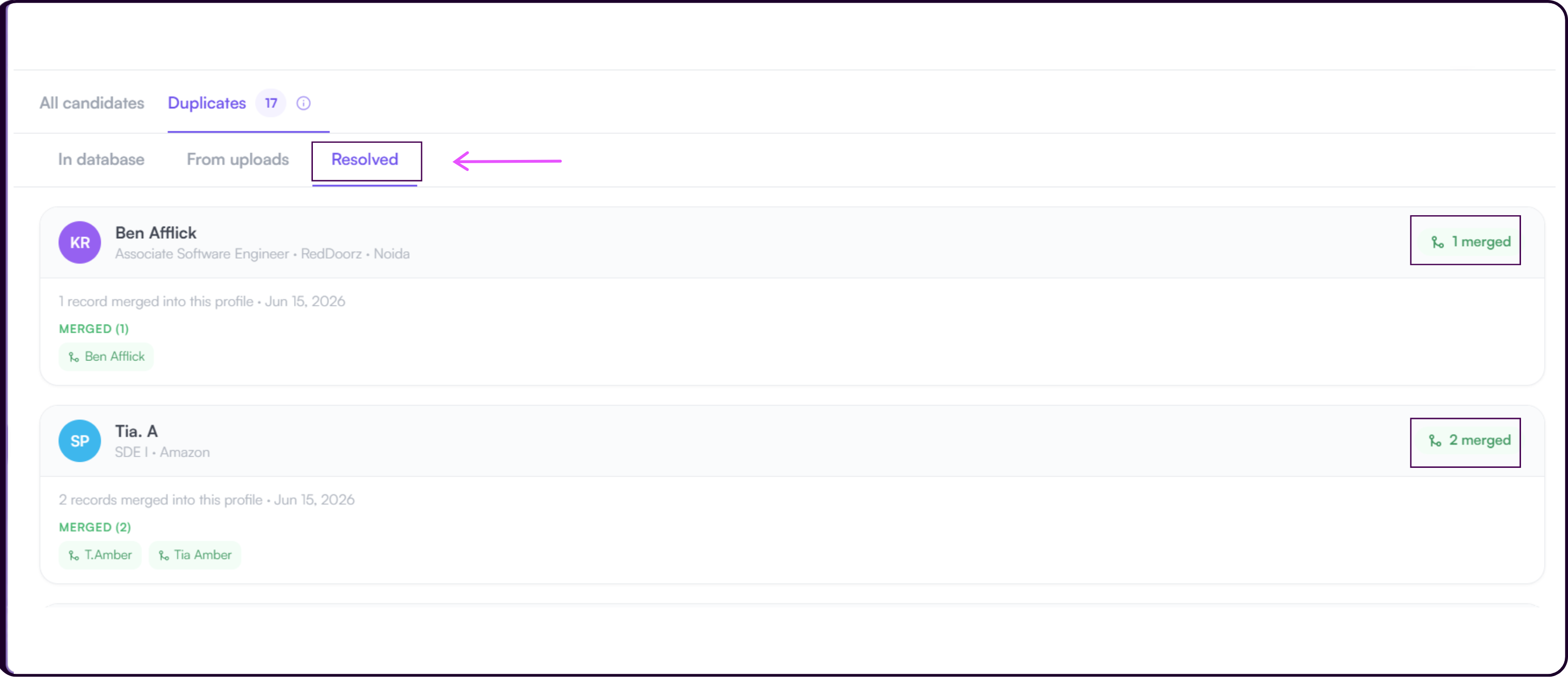
The Resolved sub-tab logs all duplicate cases that have already been handled. Each resolved entry shows the candidate name, how it was resolved (merged or added as new), the date it was resolved, and a link to the resulting candidate profile.