

JobAdder Integration
Skima AI helps recruitment teams automate workflows, prioritize candidates using AI scoring, and streamline hiring operations. With the JobAdder integration, you can sync candidates, jobs, applications, and notes from JobAdder into Skima AI, automate repetitive tasks, and manage pipelines from one place.
Setting Up the Integration
This section guides you through connecting your JobAdder account with Skima AI. Once connected, Skima AI will begin syncing your JobAdder candidates, jobs, and applications so you can use workflow automation within Skima AI.
Log in to your Skima AI dashboard.
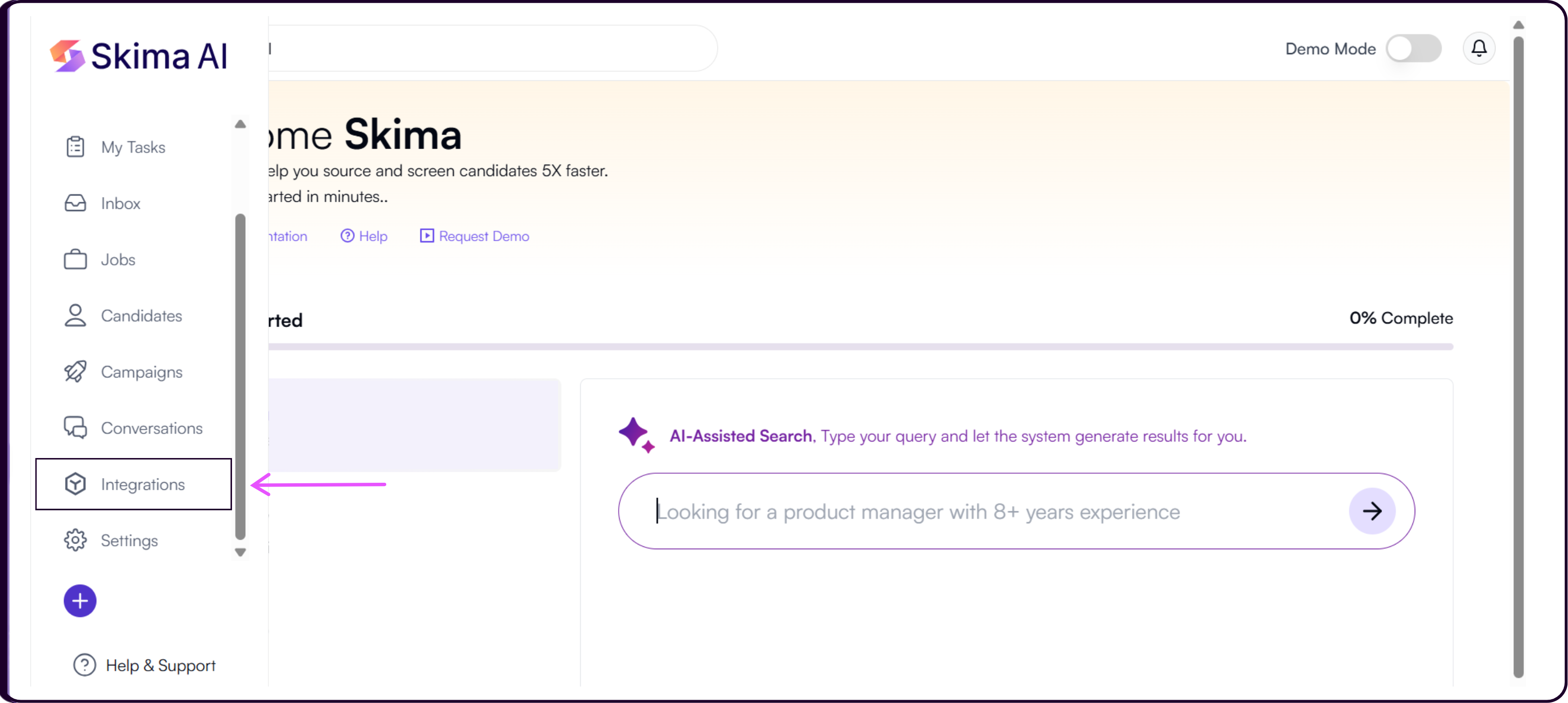
Navigate to 'Integrations' from the left sidebar.
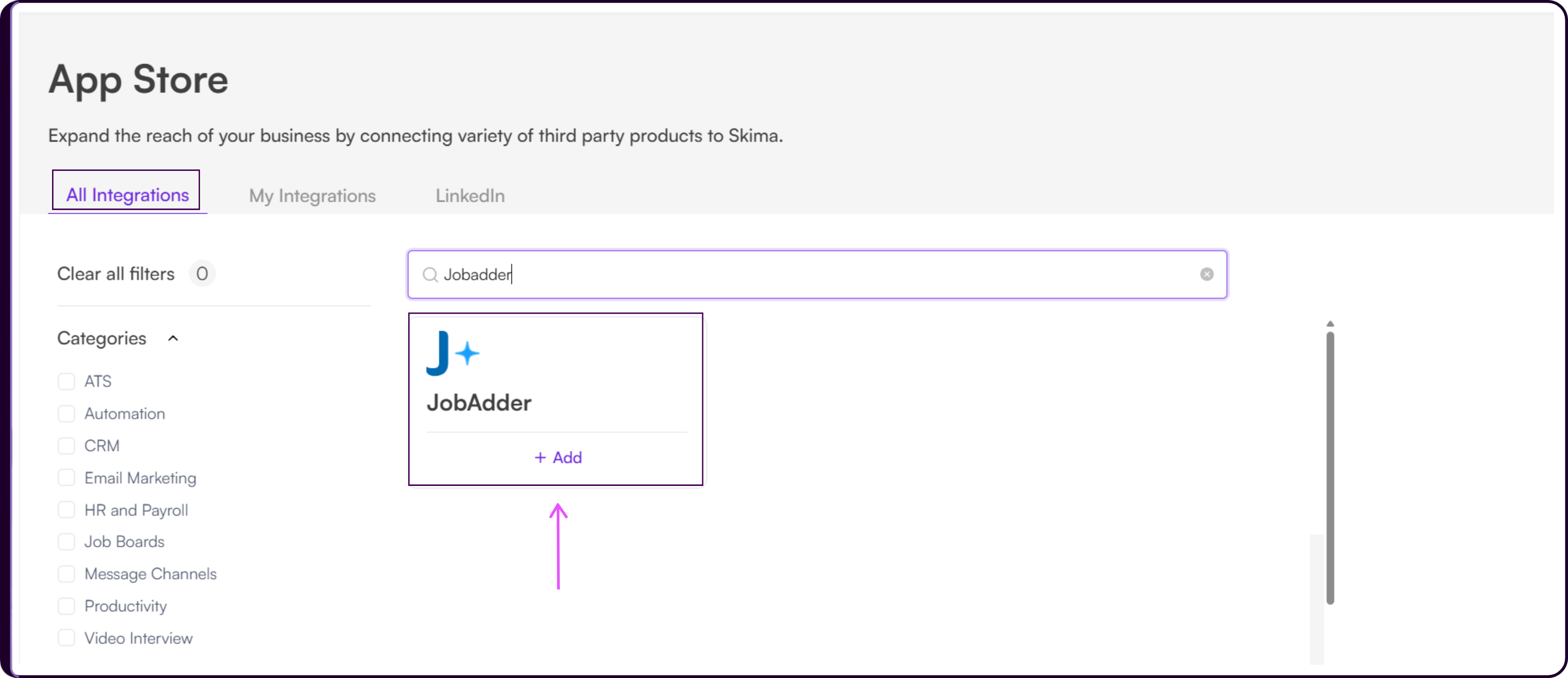
Search for 'JobAdder' or scroll through the ATS integrations list.
Click '+ Add' to begin the setup process.
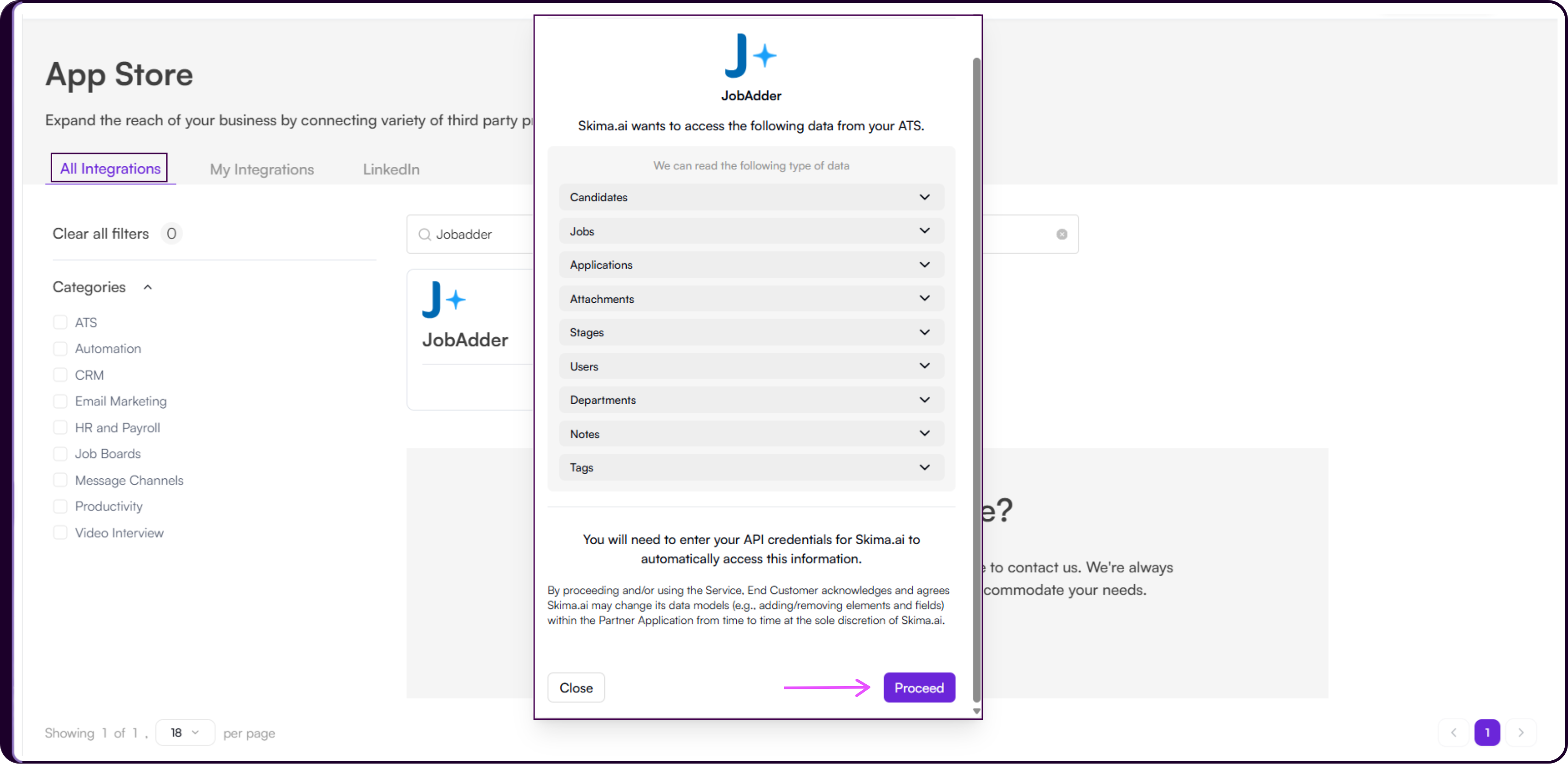
Review the permissions Skima AI requires. These include Candidates, Jobs, Applications, Attachments, Stages, Users, Departments, Notes, and Tags — the minimum set needed to sync your pipeline and enable workflow automation.
Click 'Proceed' to continue.
You will be redirected to the JobAdder sign-in page. Log in with your JobAdder account credentials to authorize Skima AI's access.
Once authorized, an 'Integrated Successfully' confirmation will appear with the date and time of connection. Click 'Close' to complete the setup.
Using the Integration
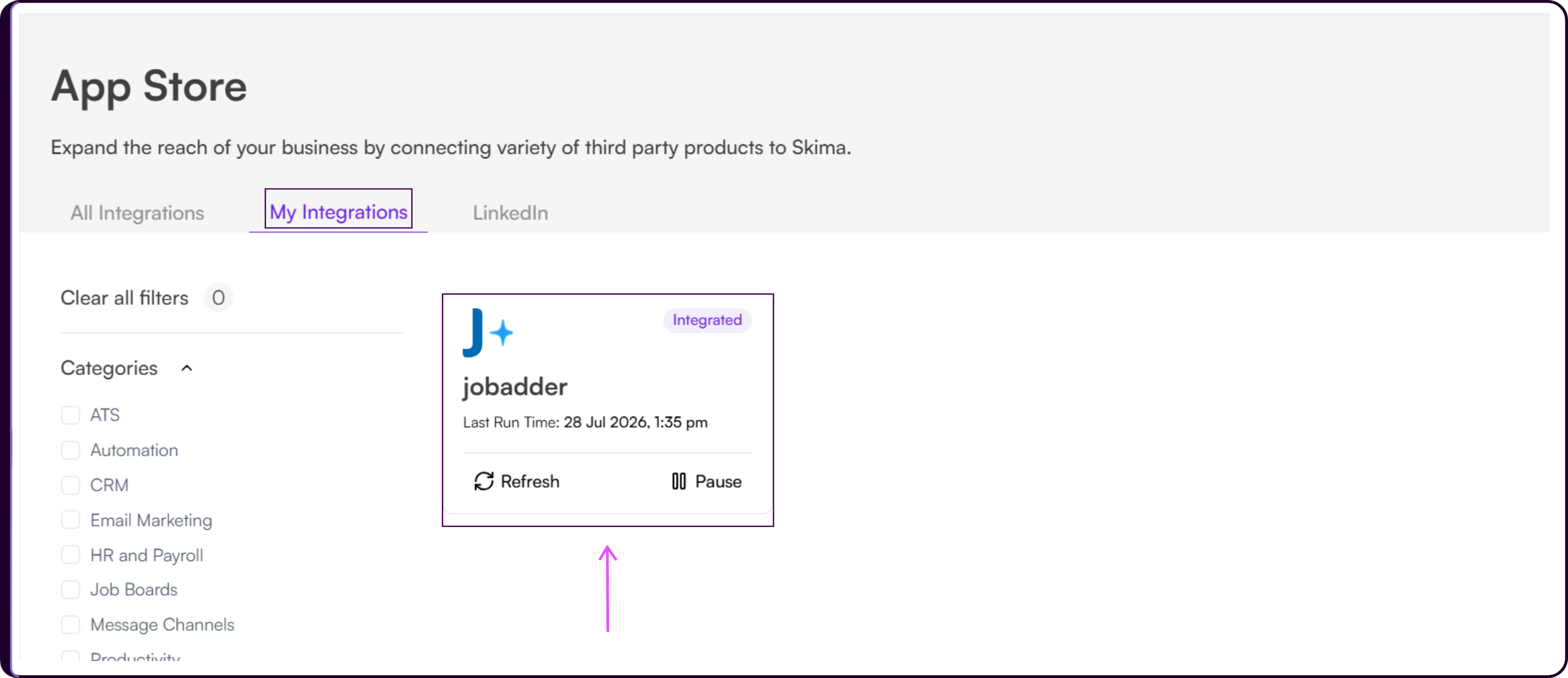
Once your JobAdder account is connected, Skima AI begins ingesting candidates, jobs, applications, and notes. This enables Skima AI to evaluate candidate and job fit, generate AI match scores, and support workflow automation. The initial sync may take some time depending on the volume of data in your JobAdder account. You can monitor sync status from the JobAdder card under 'My Integrations'.
Initial Sync Setup
Connecting your JobAdder account only establishes the authorization link. Before any data flows, Skima AI runs a scoping step with you to determine which jobs are in scope, whether you want only open and active roles, and how far back historical data should go. Those filters are applied on our backend before the first sync is initiated. Once the first sync is complete, your account moves to the standard 24-hour sync cycle.
Application Stage Sync
Skima AI retrieves updated application stages during scheduled sync cycles. This keeps your pipeline, candidate details, and application updates aligned with JobAdder without requiring manual refresh.
During each sync, Skima AI updates application stages pulled from JobAdder, refreshes candidate and job data, syncs notes and applications, and updates AI scores based on newly synced information.
Supported sync intervals are 6 hours, 12 hours, and 24 hours. To configure your preferred frequency, open the JobAdder card under 'My Integrations' and select your interval from the integration settings.
Jobs
JobAdder jobs are imported into Skima AI to support candidate and job matching and reporting.
Candidates and Applications
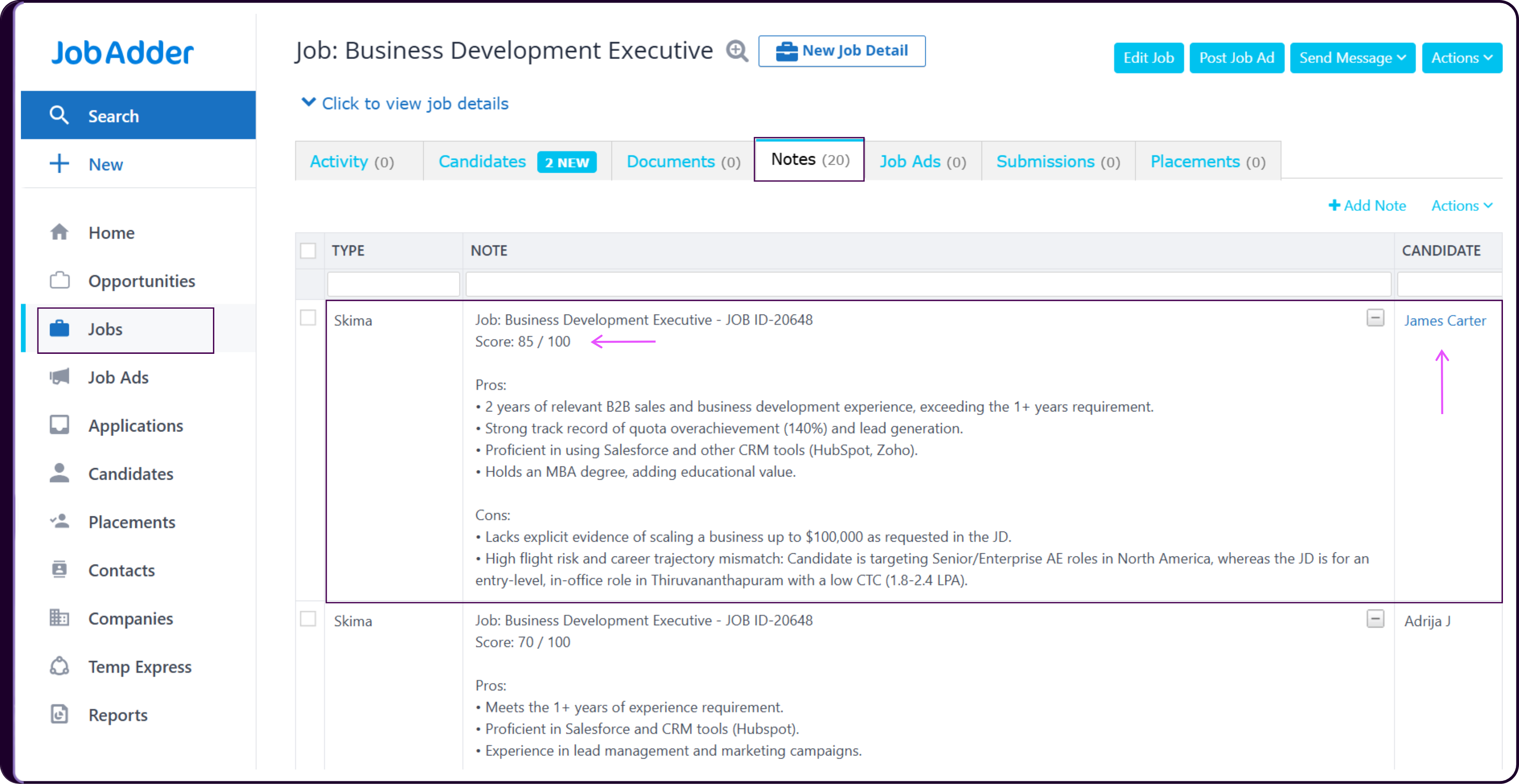
Skima AI pushes AI scoring and analysis back into JobAdder as a note on each candidate record. Each note includes the job title and job ID it relates to, so scores remain clearly identifiable when a candidate is applied to multiple jobs. The note contains the AI match score out of 100, a list of pros, and a list of cons for the candidate against that specific role.
Notes are updated in place each time a candidate is rescored, so the candidate record always reflects the latest evaluation without accumulating duplicate entries.
Disabling the Integration
If you need to remove the integration entirely, you can deactivate the connection from within Skima AI.
Deactivating the integration fully removes Skima AI's access to your JobAdder account. Previously synced data remains available in Skima AI, but new data will no longer sync and Skima AI will stop sending updates back to JobAdder. To reconnect, repeat the setup steps and click 'Click here to reintegrate' when prompted.
In Skima AI
- Navigate to 'App Store' from the left sidebar.
- Search for 'JobAdder' and click '+ Add'.
- Click 'Proceed'.
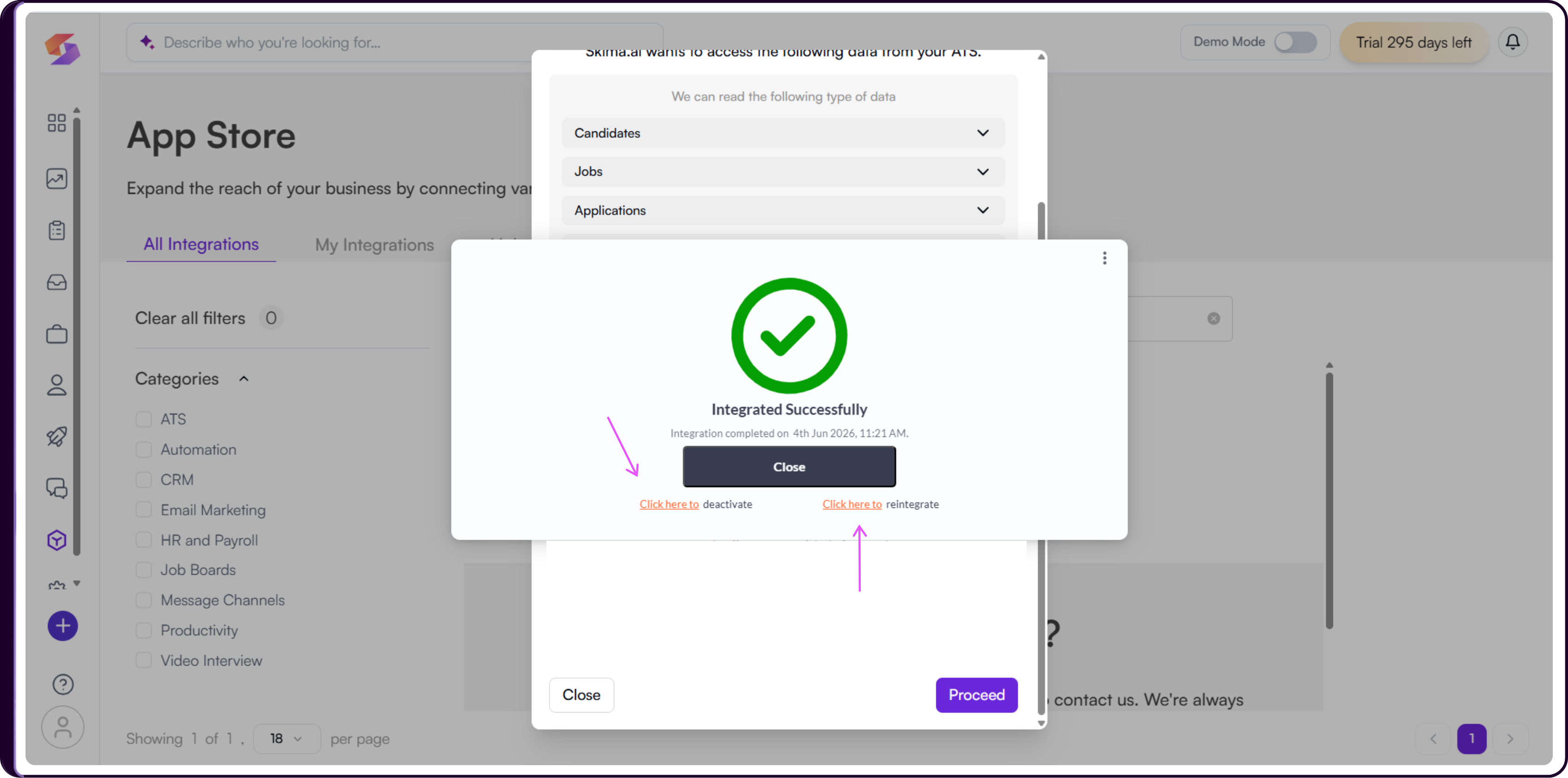
- Click 'Click here to deactivate'.
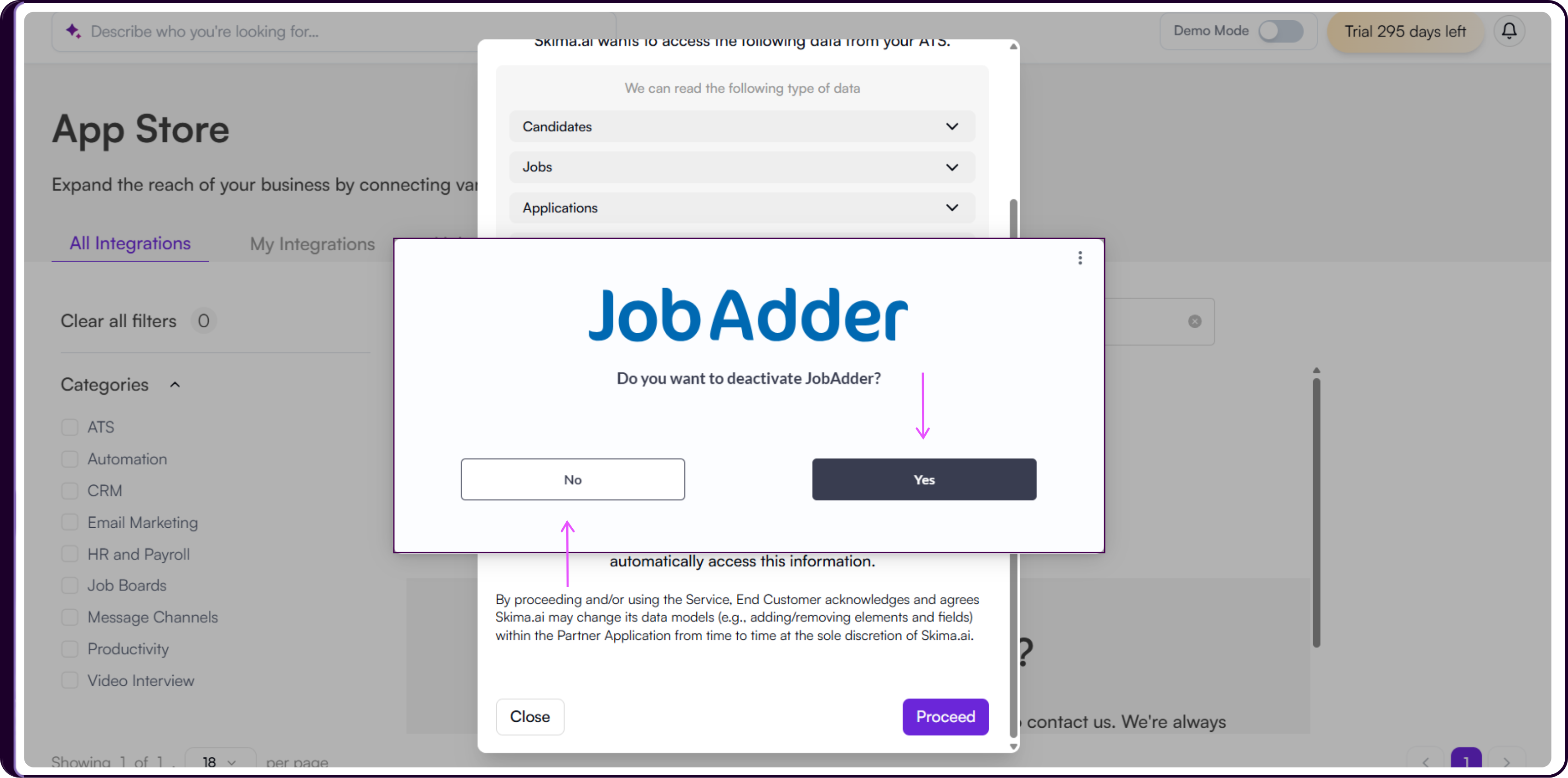
- A confirmation prompt will appear asking "Do you want to deactivate JobAdder?" Click 'Yes' to confirm.
After Disconnecting
Previously synced JobAdder data remains available in Skima AI. New data will no longer sync, and Skima AI will stop sending updates back to JobAdder. To reconnect, return to the App Store and repeat the setup steps. Click on 'Click here to reintegrate' when prompted.