

Tabs and Filters
Jobs List View
The Jobs List View is the central workspace for managing all jobs inside Skima AI. From this page you can search, filter, sort, and manage jobs, configure the table view, and access job-level actions before opening an individual role.
View more
Status Tabs
The status tabs give you a quick count and filtered view of jobs by their current state so you can immediately see where action is needed across your pipeline.
- All jobs shows every job in the system regardless of status.
- Draft shows jobs created but without a published scoring rubric yet.
- Needs setup shows ATS-synced jobs that have appeared in the list but have not had scoring configured.
- Scoring on shows jobs with an active published rubric currently evaluating candidates.
Click any tab to instantly filter the jobs list to that group.
Filter Bar
Six quick-access filter chips let you narrow the jobs list without opening the full filter panel.
- Job status filters by the current state of the job in your pipeline.
- Is Published filters by whether the job has an active public posting or not.
- ATS status filters by ATS sync status.
- Client lets you search and select a specific client to show only jobs associated with that account.
- Location lets you search and select one or more job locations.
- Recruiter filters the list to roles assigned to a specific recruiter, which is useful when reviewing workload distribution across your team.
Select a value from any chip and click 'Apply' to update the list.
More Filters
Click 'More filters' to open the extended filter panel for additional filtering options not available in the quick-access bar.
Job Details includes a Show Deleted Jobs toggle. Use this when you need to recover context on a role that was removed or audit past hiring activity.
Organization lets you filter by Secondary Recruiter and Hiring Manager using searchable dropdowns.
Location and Date includes a Created At Date range picker and a Source ID field for filtering by ATS source identifier.
Custom fields will appear here if your organization has configured any job-level custom fields.
Click 'Apply Filters' to update the list, 'Cancel' to close without applying, or 'Clear all' to reset all active filters.
Search Jobs
The search bar at the top of the page lets you locate a job by title directly without browsing the full list.
Create a New Job
Click '+ New job' in the top-right corner to start the job creation workflow. Refer to the Create Job guide for the full setup steps.
Configure Job Table View
Click the table configuration icon at the top-right of the filter bar to open the Configure job table view panel. Toggle column visibility and drag to reorder columns so the table surfaces the information most relevant to your team's workflow.
Available built-in columns include Creator, Recruiter, Secondary Recruiter, Hiring Manager, Client, Source ID, ATS Status, Status, and Location. Any custom fields configured in your organization's settings will also appear here.
Default Job Table Columns
The jobs table shows Job Title, Created On, Applications (with a scored count), Creator, Recruiter, Secondary Recruiter, Hiring Manager, Scoring, and Actions for every role. The Scoring column shows Scoring On for jobs with an active published rubric.
Click the sort arrows beside any column header to switch between ascending and descending order.
Job Actions Menu
The three-dots Actions menu on the right side of every job row provides quick access to job-level workflows without opening the full workspace.
Rediscover Candidates runs a search against your existing candidate database to surface previously screened profiles that may match the role. Refer to the Talent Rediscovery guide for details.
Create Public Page opens the job posting flow to publish the role externally. Refer to the Publishing Job guide for the full workflow.
Rediscover Candidates and Create Public Page are only available for active jobs. If a job is still in Draft status, these options will be greyed out. Activate the job first before accessing these workflows.
Delete Job permanently removes the job from the system.
- Click the three-dots menu beside the job.
- Click 'Delete Job'.
- Confirm the deletion.
Deleting a job is a permanent action. Make sure the role is no longer required before confirming.
Request Approval is available for active jobs only. It sends the Job Description to a hiring manager or stakeholder for review via email or a shareable magic link. Refer to the Hiring Manager Link guide for the full workflow.
Bulk Actions
Select one or more jobs using the checkboxes on the left side of the table. A bulk action bar will appear at the bottom of the page showing how many jobs are selected. From here you can:
- Vendor Upload generates a secure upload link for a third-party vendor to submit candidates for the selected job. Select a single job to access this option. See Vendor Upload below for the full workflow.
- Delete permanently removes all selected jobs. Click 'Delete' and type
DELETEin the confirmation modal to confirm.
Click 'Clear' to deselect all jobs and dismiss the bar.
Vendor Upload
Vendor Upload lets you give a third-party recruiting agency or external consultant access to upload candidates for one or more jobs without needing a Skima AI account. Each vendor gets a unique time-limited link tied to the jobs you select.
Generating a vendor upload link:
- Select one or more jobs using the checkboxes on the left side of the table.
- Click 'Vendor Upload' in the bulk action bar at the bottom of the page.
- A Generate Vendor Upload Link modal will appear showing the number of jobs selected.
- Search for an existing vendor in the Vendor dropdown. If the vendor does not exist yet, click '+ Add new vendor' and fill in their Name and Contact email. The vendor must enter this exact email to access the upload link. Click 'Save vendor' to add them.
- Set an expiry date in the Expires At field if needed. The link defaults to 30 days if left blank.
- Click 'Generate Link'.
A confirmation screen will appear with the generated link, the vendor name, and the expiry date and time. Copy the link using the copy icon or open it directly using the external link icon. Click 'Generate another' to create an additional link or 'Close' to dismiss.
What the vendor sees:
The vendor opens the shared link and enters the email address registered against their vendor profile to verify access. Once verified, they go through a two-step flow: first selecting the job they are uploading resumes for, then uploading files. Accepted formats are PDF, DOC, or DOCX with a maximum of 10 MB per file. Multiple files can be uploaded at once. After submitting, a "Resumes submitted successfully" confirmation appears and processing begins in the background.
Tracking vendor uploads:
Once resumes have been submitted, you can track activity from the Inbox tab in the left sidebar. Each vendor upload entry shows the vendor name, the date, and the number of resumes uploaded. Click any entry to open the detail panel showing the vendor name, the linked job, total resumes uploaded, the expiry date, and the shareable link.
1. View Candidates
The View Candidates tab is the primary workspace recruiters use to screen, review, shortlist, and manage candidates for a specific role. It centralizes AI scoring, skills evidence, match reasoning, pipeline status, and candidate actions in one place.
View more
Job Header
The job header runs across the top of the workspace and gives recruiters the key job controls and context they need.
The job title is displayed prominently alongside a Scoring On status badge confirming the rubric is active, and an Active badge showing the job is currently active in your pipeline. Below the title, Location and Assign To are shown. Click the + icon next to Assign To to assign or update the recruiter responsible for the role.
The top-right corner of the header contains four controls.
- The Rediscover Candidates icon (clock) searches your existing candidate database to surface profiles that match the role but were not part of the original pipeline. Refer to the Talent Rediscovery guide for details.
- The Export Candidates icon lets you export candidate data from the current job.
- The Upload Candidates icon opens the resume upload modal. Supported formats are PDF, DOC, and DOCX. Refer to the Add Candidates to the Job section for the full upload steps.
- The three-dots Actions menu provides additional job-level controls covered in the Actions Menu section below.
Workspace Tabs
Below the job header, the workspace tabs let you navigate between different parts of the hiring workflow for the role. The available tabs are Board, View Candidates, View JD, Screening Questions, and Interviews.
Candidate Source Tabs
Below the workspace tabs, four source tabs filter the candidate list by how candidates entered the pipeline.
- All shows every candidate linked to the job regardless of source.
- Rediscovered shows candidates surfaced from your existing database through a rediscovery search.
- Applied shows candidates who applied directly through the job posting.
- Sourced shows candidates uploaded manually or via the Chrome Extension from job boards or LinkedIn.
Each tab displays a live count so you can immediately see where your pipeline volume is coming from.
Search
The Search by name bar lets you find a specific candidate in the current job pipeline without filtering the full list.
Select All
The Select all checkbox at the top of the list selects every candidate currently visible. When candidates are selected the checkbox updates to show the count, for example All 7 selected.
AI Calibration and Scoring Rubric
The AI Calibration button in the top-right area of the workspace shows how many scoring rules are currently active for the job, for example 2 rules. Click it to open the Scoring rubric modal, which lists all criteria the job is currently scoring candidates against. Refer to the AI Calibration guide for the full calibration workflow.
Score Distribution
Click 'Score distribution' to expand the Pipeline Quality panel. This shows a bar chart breaking down the candidate pool across score bands and summary counts for disqualified candidates, average score, and top matches across the pipeline.
Sort
The Sort: Match score dropdown lets you reorder the candidate list by Match score, Application status, or Created at date.
Filter
Click 'Filter' to open the candidate filtering panel. The panel has a Search filters input at the top to find any filter quickly. Filters are organized into sections.
The top-level filters are:
- Experience with a range slider from 0 to 40 years.
- Location with a location input field.
- Match score with a percentage range slider from 0% to 100%.
- Application status with an any status dropdown.
Below these, three collapsible groups contain additional filters.
Source & pipeline (5 filters) includes:
- Entry channel to filter by how the candidate entered the pipeline: Email, Job Posting, ATS, Chrome Extension, or Manual Upload.
- Tags to filter by internal candidate tags.
- Referred candidates only toggle.
- Hidden from search results toggle.
- Source to filter by named sources such as LinkedIn or custom sources.
Candidate details (4 filters) includes:
- Notice period
- Expected salary with a range slider.
- Education by qualification level.
Advanced (3 filters) includes:
- Date
- Custom fields with a link to add custom fields from settings if none are configured.
- Screening questions filters if screening questions have been configured for the role.
Click 'Apply filter' to update the list or 'Cancel' to close without applying. Click 'Clear all' in the top right of the panel to reset all active filters.
Candidate Card
Each candidate card gives a structured screening overview without needing to open a separate profile page.
The top of the card shows the candidate's name, a source tag indicating how they entered the pipeline, years of experience, and last worked at location. If the candidate has unmet must-have criteria, a red tag such as 3 must-haves unmet appears next to the name.
The Skills evidence section shows skills checked against the resume directly, not self-reported by the candidate. Skills found on the resume appear under VERIFIED with green tags. Skills not found appear under NOT VERIFIED with yellow tags. If no skills were verified, only the NOT VERIFIED section appears.
The Must-haves section lists each must-have criterion from the rubric by name with a MET or NOT MET status.
The Experience and Education fields show the candidate's background details pulled from the parsed resume.
The Match score panel on the right shows the overall percentage score in color alongside a WHY THEY MATCH section listing the specific reasons the candidate scored as they did.
Candidate Quick Action Icons
Three icons appear inline on each candidate card.
- The document icon opens the candidate's full resume in a side panel.
- The eye icon opens the Form Response modal showing the candidate's answers to the job's screening questions.
Application Status
The application status badge on the right side of each candidate card shows where the candidate currently sits in the hiring workflow. Click the badge to open the Update Application Status modal where you can update the stage and status.
Candidate Communication
The chat bubble icon on each candidate card lets you message the candidate directly from the workspace.
Candidate Three-Dots Menu
The three-dots menu on each candidate card provides additional candidate-level actions organized into groups.
Skima Intelligence
- Run Resume Cross-Check performs a deeper background verification on the candidate's resume.
Findings from Resume Cross-Check may trigger adverse-action duties under FCRA, EEOC, or EU AI Act regulations. A candidate notice may be required before using findings in a hiring decision.
- Enrich candidate pulls additional publicly available information on the candidate to fill in profile gaps.
- AI Interview schedules an AI-led interview for the candidate. Refer to the AI Interviews guide for the full workflow.
Move in Pipeline
- Link to another job associates the candidate with an additional role in your pipeline.
- Schedule an interview begins the interview coordination workflow. Refer to Section 1a: Schedule an Interview below for the full steps.
Record
- Add tags lets you label candidates with internal tags.
- View offers opens any offer records associated with the candidate.
- View custom fields shows any organization-specific fields configured for candidate records.
- View responses opens the Form Response modal showing screening question answers.
- Unlink from this job removes the candidate from the current role's pipeline.
Actions Menu
The three-dots Actions menu in the top-right corner of the job header provides job-level controls that apply to the entire role.
Create Job Posting opens the publishing workflow. Refer to the Publishing Job guide for the full steps.
Global Search opens a search interface to find candidates across your entire database.
Rediscover Candidates runs a talent rediscovery search for the current role. Refer to the Talent Rediscovery guide for details.
Share CV Upload Link generates a secure vendor upload link for the job. Refer to the Vendor Upload section for the full workflow.
Update Job Status lets you change the active status of the job within your pipeline.
Update Job Workflow lets you update the workflow stage associated with the job.
Bulk Actions
Select one or more candidates using the checkboxes on the left side of each card. A bulk action bar will appear at the bottom of the page showing how many candidates are selected. The available actions are:
- Send for Approval sends selected candidate profiles for hiring manager review.
- Bulk Update Status updates the application status for all selected candidates at once.
- Link to a job associates selected candidates with another role in your pipeline.
- Bulk Update Tags applies or removes tags across all selected candidates at once.
- Remove from search results hides selected candidates from talent rediscovery searches.
- Show in search results makes previously hidden candidates visible in rediscovery searches again.
- Create segment creates a candidate segment from the selection for use in campaigns.
Click 'Clear' to deselect all candidates and dismiss the bar.
1a. Schedule an Interview
Scheduling an interview from the candidate view helps recruiters move quickly from screening to coordination without leaving the job workspace.
View more
- Click the three-dots menu on the candidate card.
- Under Move in Pipeline, hover over 'Schedule an Interview'. A submenu will appear with two options:
- Manually Create an Event
- Request Availability and Automate Event.
Manually Create an Event
Use this option when the interview time is already confirmed and you want to set up the meeting directly.
- Click 'Manually Create an Event'.
- Sign in with the Gmail or Microsoft account you want to use for sending the scheduling email and creating the interview event.
- A Schedule Interview Event modal will appear. Fill in the interview title, candidate, participants, event date, time, duration, platform, attachments, and description.
- Select the interview platform from the dropdown. Depending on the connected account, this may show Google Meet, Zoom, or other supported options.
- Attach the Job Description or any supporting files if needed, then click 'Send Invitation'.
If your Zoom account is connected with Skima AI, the Zoom option will appear in the platform dropdown. Refer to the Zoom Integration guide for the setup steps.
Request Availability and Automate Event
Use this option when the interview time is not yet confirmed and you want the candidate to select a slot from your available times. This reduces scheduling back-and-forth by letting both parties confirm availability independently before the event is created.
- Click 'Request Availability and Automate Event'.
- The Request Interview Availability modal will appear with two tabs:
- Draft Email
- Preview.
Draft Email Tab
- The Candidate Email Address is pre-filled from the candidate's profile.
- Enter the Send to Interviewer (Email Address). This is required before you can access the Preview tab.
- Set the Availability Date Range to define the window within which the candidate can select a slot.
- Set Availability Link Expires in to control how long the scheduling link stays active. The default is 48 hours.
- Under If the Availability for both match, select the action Skima AI should take when the interviewer and candidate availability matches.
- In the Approval Email Draft section, fill in the Subject and Message Content for the email sent to the candidate. Use Templates to load a saved template, Insert Variable to add dynamic placeholders such as {{JOB_TITLE}} or {{JOB_COMPANY}}, or click AI to generate a draft automatically.
The interviewer email address and availability date range must be filled before you can access the Preview tab.
Preview Tab
Once the required fields are filled, click 'Preview' to review how the emails will appear to both the candidate and the interviewer before sending.
The preview is split into two sections. Candidate shows the subject line, recipient email, and the full email body exactly as the candidate will receive it, with the scheduling link and dynamic variables rendered with real values. Interviewer shows the same structure sent to the interviewer's address for confirming their available slots.
- After reviewing both previews, click 'Generate Link and Send Email' to send the scheduling emails and generate the availability links.
Skima AI then generates two links: one for the interviewer to confirm their available slots, and one for the candidate to select a time that works for them. If the candidate wants to propose a different time, they can do so from their link. Any updated request will appear in the interviewer's link for the hiring team to review and finalize.
Use the availability-based flow when neither the recruiter nor the candidate has a confirmed time. It removes the need for back-and-forth emails and speeds up scheduling significantly.
2. View Kanban
The View Kanban tab provides a visual recruitment pipeline where recruiters can track, organize, and move candidates across different hiring stages for a job. This workspace helps hiring teams manage candidate progression more efficiently while maintaining complete visibility across the recruitment workflow.
View more
Access the Kanban View
Navigate to ‘Jobs’ from the left sidebar.
Open any job to access its hiring workflow workspace.
Click on the ‘View Kanban’ tab.
Recruiters will now see all linked candidates displayed in a Kanban board format organized across recruitment stages configured for the role.
Example stages may include:
- Applied
- Hiring Manager Review
- Assessment
- Screening
- Interview
This layout helps recruiters quickly understand where candidates currently sit within the hiring pipeline.
The Kanban view does not display candidates who have been disqualified by AI Calibration knockout filters. These candidates remain visible in the View Candidates tab, where you can review their disqualification reasons and re-evaluate them if needed.
Move Candidates Between Stages
Recruiters can update candidate stages directly from the Kanban board without opening individual candidate profiles by using simple drag-and-drop interactions.
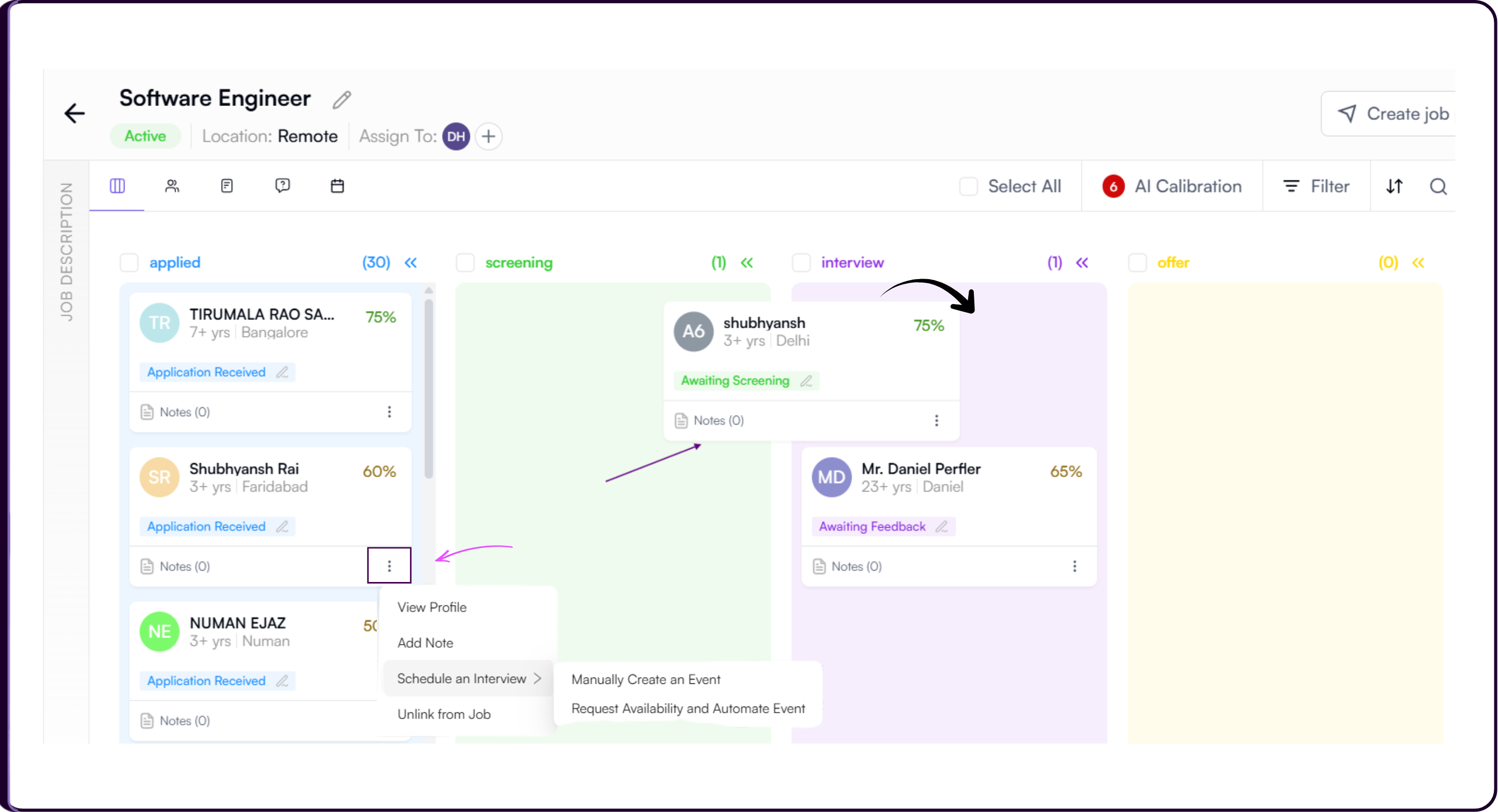
Recruiters can also use the 'three-dots' quick action menu available on each candidate card to perform additional actions including:
- View Profile: to review complete candidate resume details and AI insights
- Add Notes: to leave internal hiring feedback or evaluation comments
- Schedule Interviews: to directly begin interview coordination workflows
- Unlink from Job: to remove the candidate from the current hiring pipeline
Hide Recruitment Stages
i) At the top-right corner of each stage column, recruiters will see an arrow icon.
ii) Clicking this arrow hides that particular stage from the current Kanban view, helping recruiters reduce visual clutter and focus only on active workflow stages.
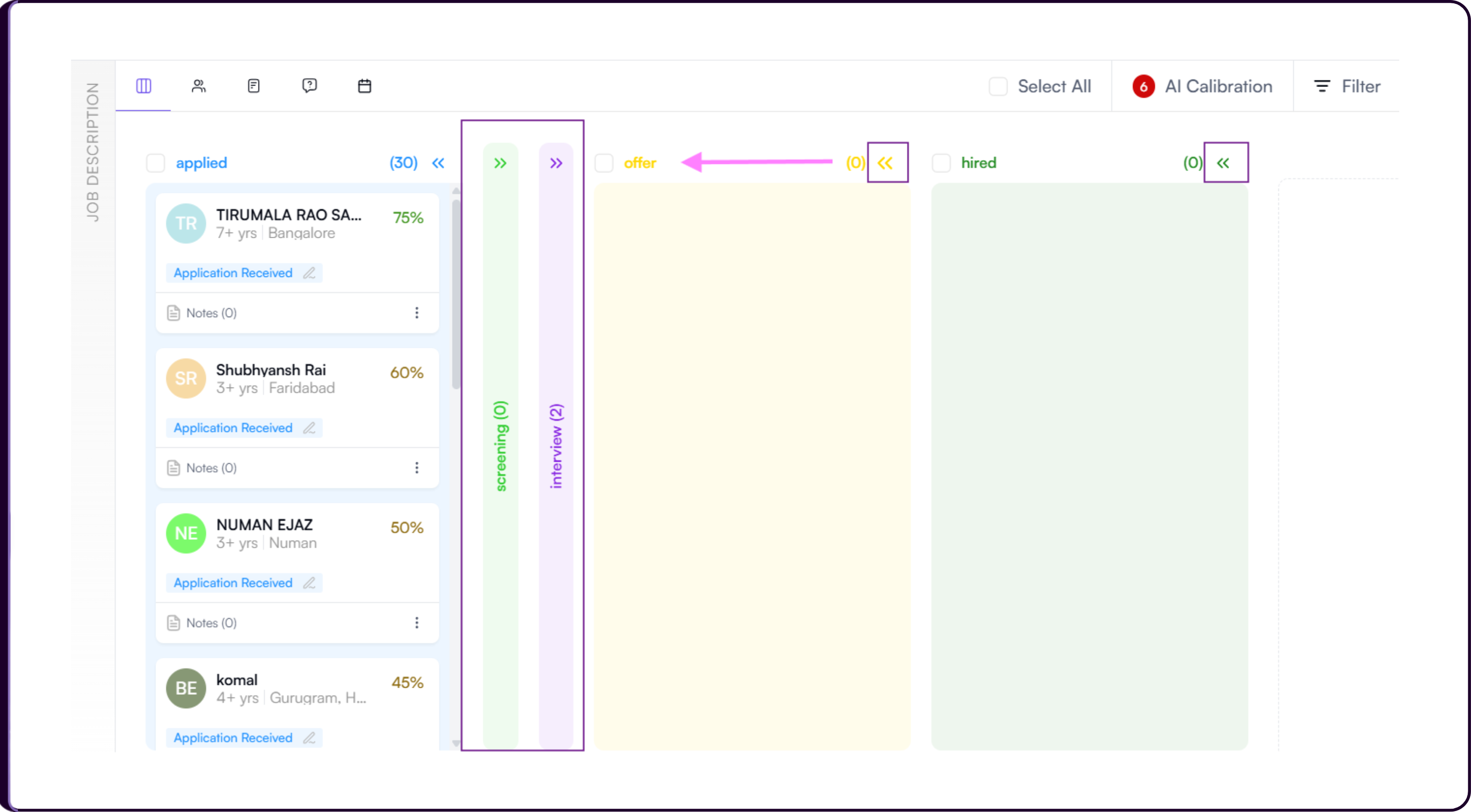
iii) Hidden stages can be expanded again anytime whenever required.
Create New Recruitment Stages
i) At the end of the horizontal Kanban stage list, recruiters will see a ‘+’ button.
ii) Clicking this button opens the ‘Add Stage’ modal where recruiters can create additional custom workflow stages for the role.
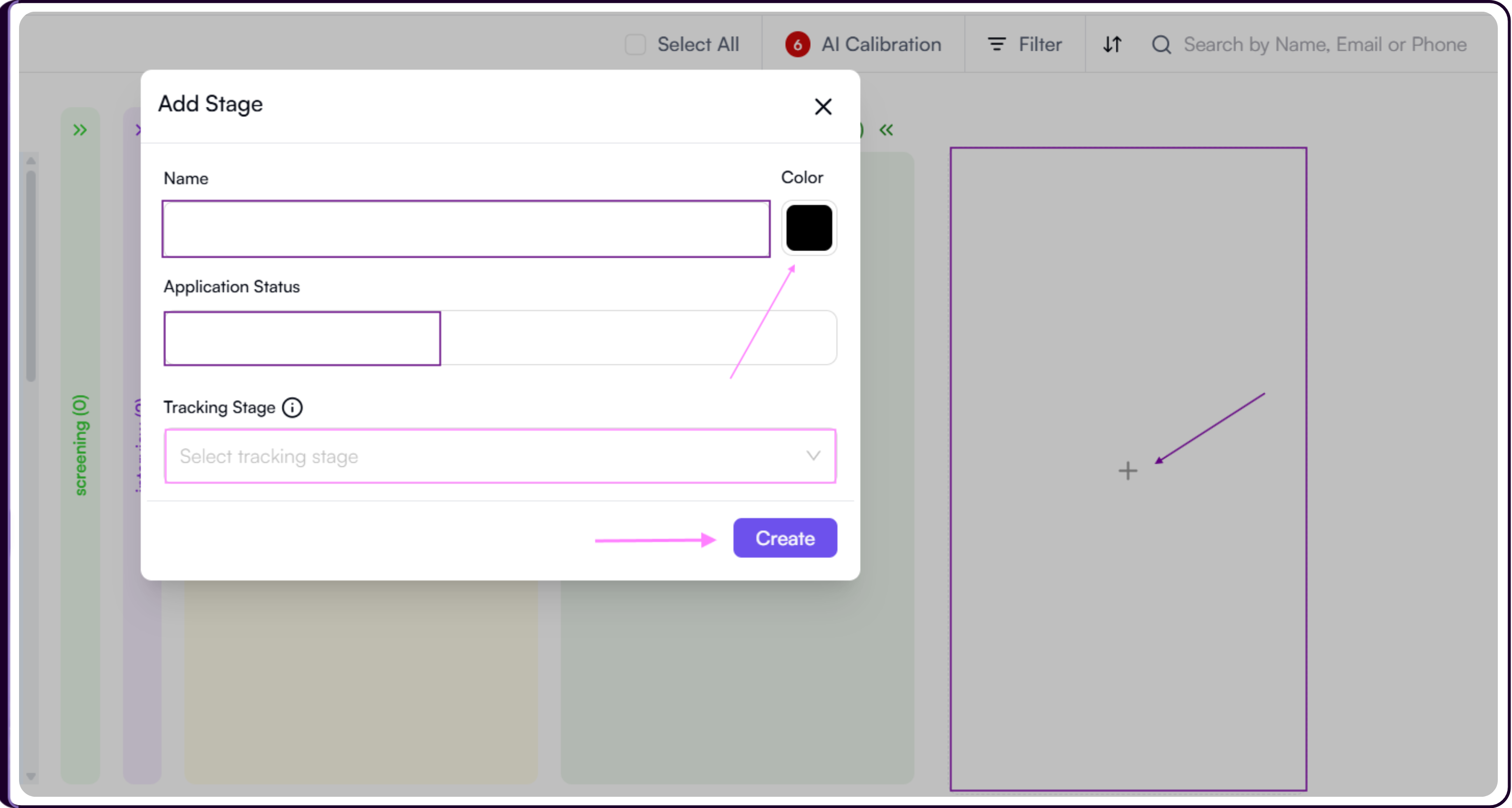
iii) Recruiters can configure:
- Stage Name: the title of the workflow stage
- Color: the display color used for the stage column
- Application Status: the status linked to the stage
- Tracking Stage: the workflow tracking category associated with the stage
iv) Once configured, click on ‘Create’ to add the stage to the recruitment workflow.
This flexibility allows teams to customize hiring pipelines according to their internal recruitment process.
3. View JD
The View JD tab is where recruiters review the job's details and refine the scoring setup after the role has been created. Changes made to the scoring criteria here directly affect how candidates are evaluated.
View more
Access the View JD Tab
- Open any job from the Jobs list.
- Click the 'View JD' tab from the job workspace navigation.
The tab shows the full Job Description in the center panel with an 'Edit Job Description' link in the top right. The left panel shows job metadata, notes, and custom fields.
Left Panel
The left panel shows the following fields pulled from the job record:
- Created By displays the email of the recruiter who originally created the job.
- Min. Experience shows the minimum experience requirement set for the role.
- Salary shows the salary range if it was configured during job creation, for example "USD 80000 to 120000 Per Annum." This field only appears if a salary was set in Job Details.
- Notes lets you attach internal notes to the job record. Existing notes show the note text, the note type tag, the date and time it was added, who added it, and the source. To add a new note, click the Add Note field and type directly. Click the + icon to save it inline.
- Custom Fields appear below the notes section if your organization has configured job-level custom fields. Click 'Edit' beside the Custom Fields heading to open the Edit custom fields modal where you can update the values directly. Click 'Save' to apply or 'Cancel' to discard.
Edit the Job Description and Scoring Criteria
Click 'Edit Job Description' in the top right of the center panel to enter the Scoring criteria step. From here you can edit the JD, update criteria, reweight them, add new ones, and publish the updated rubric. All candidates linked to the job are re-scored automatically once you publish.
Refer to the Step 3: Review and Publish Scoring Criteria section of the Create Job guide for the full workflow including compliance flags, rubric tiers, and publishing steps.
Saving the JD alone does not re-score candidates. You must publish the updated rubric for changes to take effect on the candidate pipeline.
Screening Questions
The Screening questions button in the top right shows the number of questions currently configured for the job, for example Screening questions (2). If no questions have been added it shows Screening questions (0). Click it to open the screening questions view.
Refer to the Add Screening Questions section of the Create Job guide for the full steps.
4. View Screening Questions
The View Screening Questions tab shows all screening questions currently configured for the job and how each answer is classified. These questions are pulled directly from your scoring setup and are shown to candidates during the application process.
View more
Each question displays its answer type classification on the right.
- Knockout disqualifies the candidate immediately if the answer fails.
- Penalty lowers the candidate's score but keeps them in the ranking.
- Collect records the answer for the recruiter with no automatic effect on score or eligibility. If Skima AI has suggested a classification for a question, it will appear as
- Suggested: [type] below the question.
The right panel shows a What each type means on the form reference so you can quickly verify how each classification affects candidate eligibility without leaving the tab.
Questions on this tab are read-only. To add, remove, or reclassify questions, click 'edit the scoring criteria →' in the info banner at the top of the tab. This takes you to the scoring criteria environment where you can make changes. Refer to the Add Screening Questions section of the Create Job guide for the full steps.
Once a job has already been published, unpublish it first before making changes to screening questions. Refer to the Unpublish a Posting section of the Publishing Job guide for the steps.
5. View Interviews
The View Interviews tab helps manage and track all interviews scheduled for a specific job inside Skima AI. This workspace provides complete visibility into interview schedules, interview status, meeting platforms, and candidate interview activity from a single location.
View more
Search Candidates
i) The search bar at the top of the page helps quickly locate interviews by searching for the candidate’s:
- Name
- Email address
ii) This is useful when managing large interview pipelines or reviewing a specific candidate’s interview activity.
Filter Interviews
i) Clicking on ‘Filter’ opens the interview filtering panel.
ii) Interviews can be filtered using:
- Interview Type to filter interviews based on the meeting provider such as Google Meet, Zoom, or other configured platforms.
- Interview Status to narrow interviews by statuses such as Pending, Rescheduled, Processed, or completed stages.
- Created At Date to filter interviews based on the interview creation date range.
iii) After selecting the required filters, click on ‘Apply’ to update the interview list.
iv) Click on ‘Clear Filters’ anytime to reset all applied filters.
Interview Table
All scheduled interviews for the selected job appear inside the interview table. The table provides visibility into the following details for every scheduled interview:
- Candidate Name: Identifies the candidate linked to the interview.
- Start Time: Shows the scheduled interview start date and time.
- Duration (mins): Displays the planned interview duration.
- Event Link Provider: Shows the meeting platform used for the interview.
- Status: Displays the current interview scheduling status.
- Actions: Provides additional interview management options.
This helps monitor interview progress, identify pending interviews, and manage scheduling workflows directly from a centralized interview management view.