

Teamtailor Integration
Skima AI helps recruitment teams automate workflows, prioritize candidates using AI scoring, and streamline hiring operations. With the Teamtailor integration, you can sync candidates, jobs, applications, and notes from Teamtailor into Skima AI, automate repetitive tasks, and manage pipelines from one place.
Setting Up the Integration
This section guides you through connecting your Teamtailor account with Skima AI. Once connected, Skima AI will begin syncing your Teamtailor candidates, jobs, and applications so you can use workflow automation within Skima AI.
Step 1: Generate your Teamtailor API Key
You need a Teamtailor API key before starting setup in Skima AI. You must be a Company Admin in Teamtailor to complete this step.
To confirm you have Company Admin access, navigate to Settings in Teamtailor. If you can see the 'API Keys' option under Integrations, you have the required access. If not, contact your Teamtailor administrator before proceeding.
- Log in to Teamtailor and navigate to Settings → Integrations → API Keys.
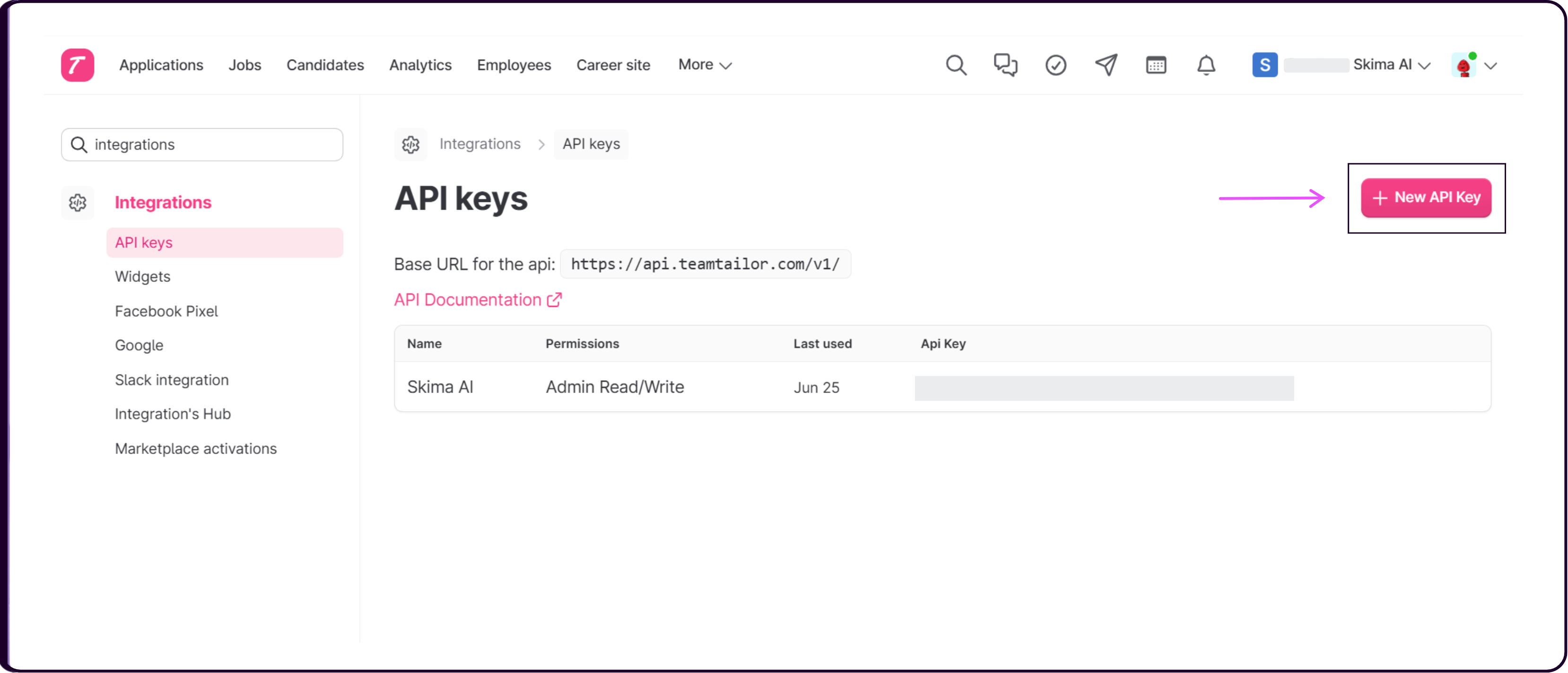
- Click '+ New API Key' in the top-right corner.
- Give the key a recognizable name, such as
Skima AI. - Set the Permission to Admin.
Skima AI syncs candidate data, which is restricted to Admin-scoped keys only in Teamtailor. Public and Internal keys will not grant the access required for this integration to function.
- Set the Access to Read and Write.
Read access allows Skima AI to pull your candidates, jobs, and applications. Write access is required for Skima AI to push AI scores, tags, and notes back into Teamtailor.
- Click 'Create' to generate the key.
- Copy the key immediately and store it securely. Teamtailor displays the API key only once, it cannot be viewed again after you close this screen. If lost, you will need to delete and recreate the key.
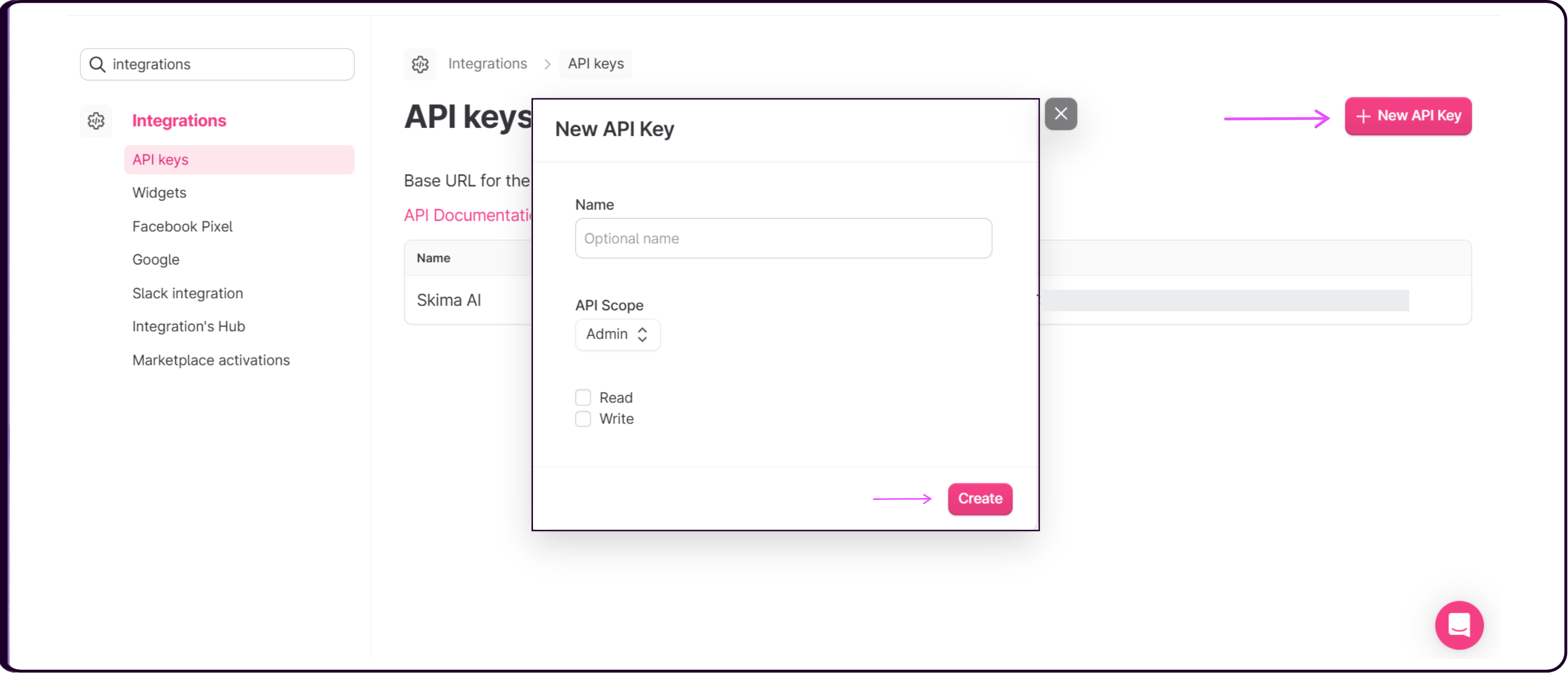
- On the API Keys page, note the Base URL for the API displayed at the top of the page. You will need to enter this in Skima AI during setup.
The Base URL reflects the region where your Teamtailor account data is stored. Common values are https://api.teamtailor.com/v1/ (Europe), https://api.na.teamtailor.com/v1/ (North America), and https://api.au.teamtailor.com/v1/ (Asia-Pacific). Copy it directly from the page rather than typing it manually.
Step 2: Connect Teamtailor in Skima AI
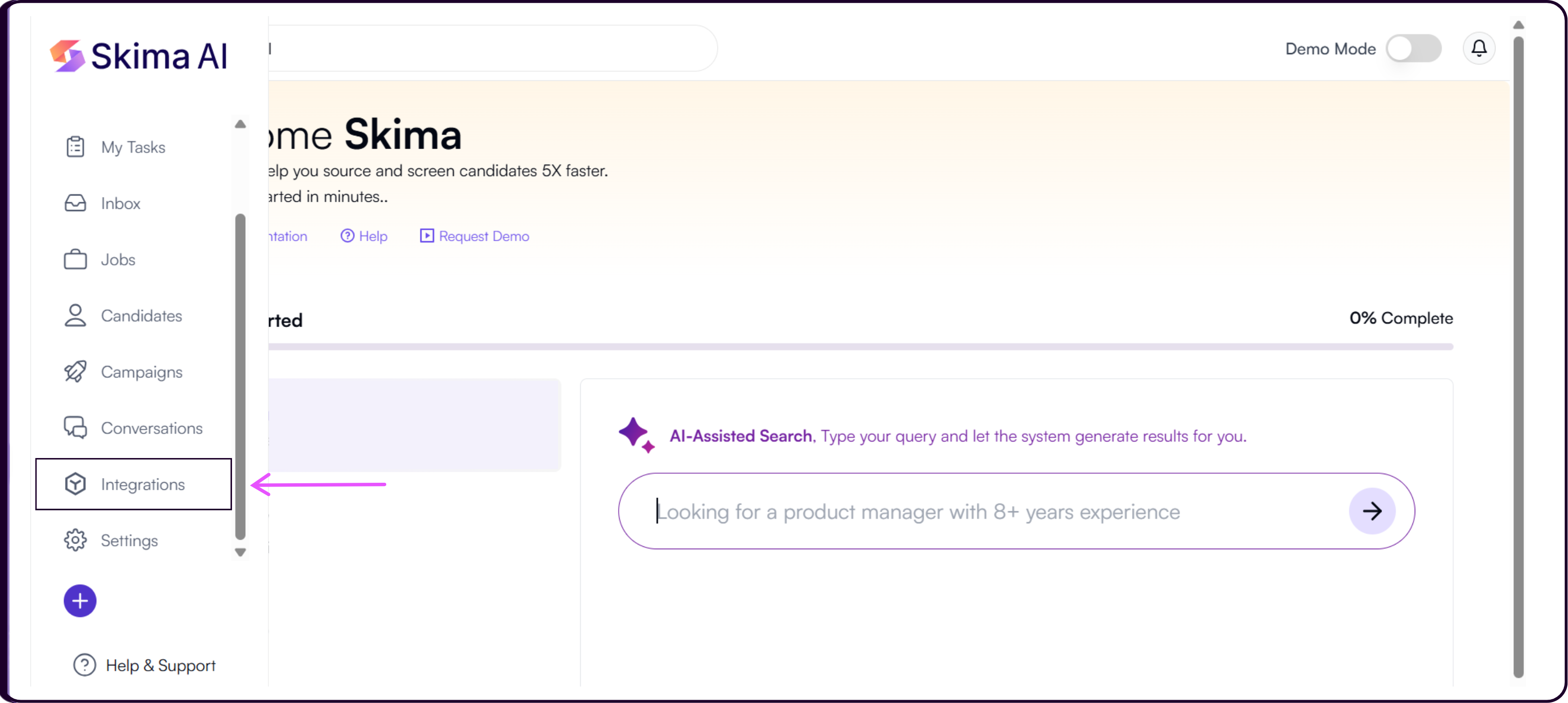
Log in to your Skima AI dashboard.
Navigate to 'Integrations' from the left sidebar.
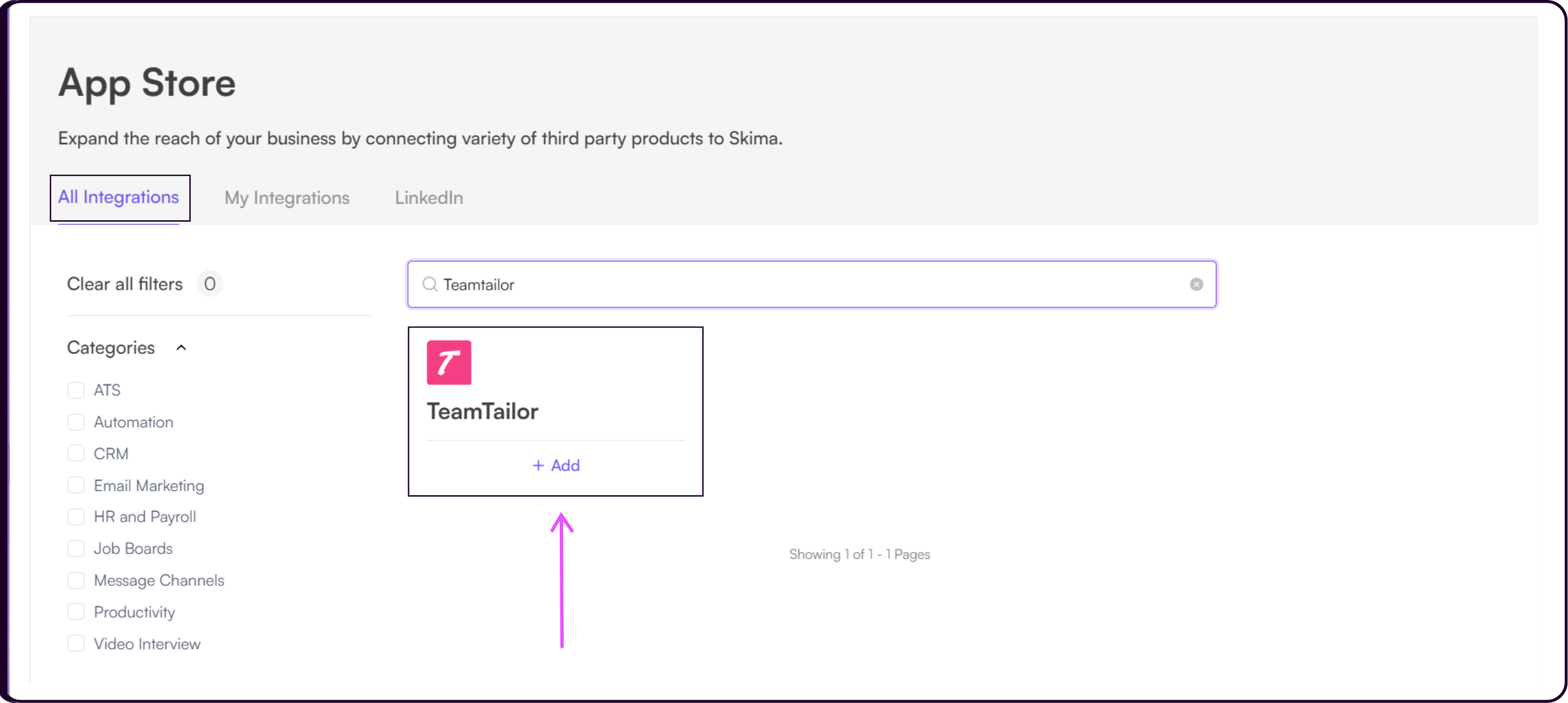
Search for 'Teamtailor' or scroll through the ATS integrations list.
Click 'Add' to begin the setup process.
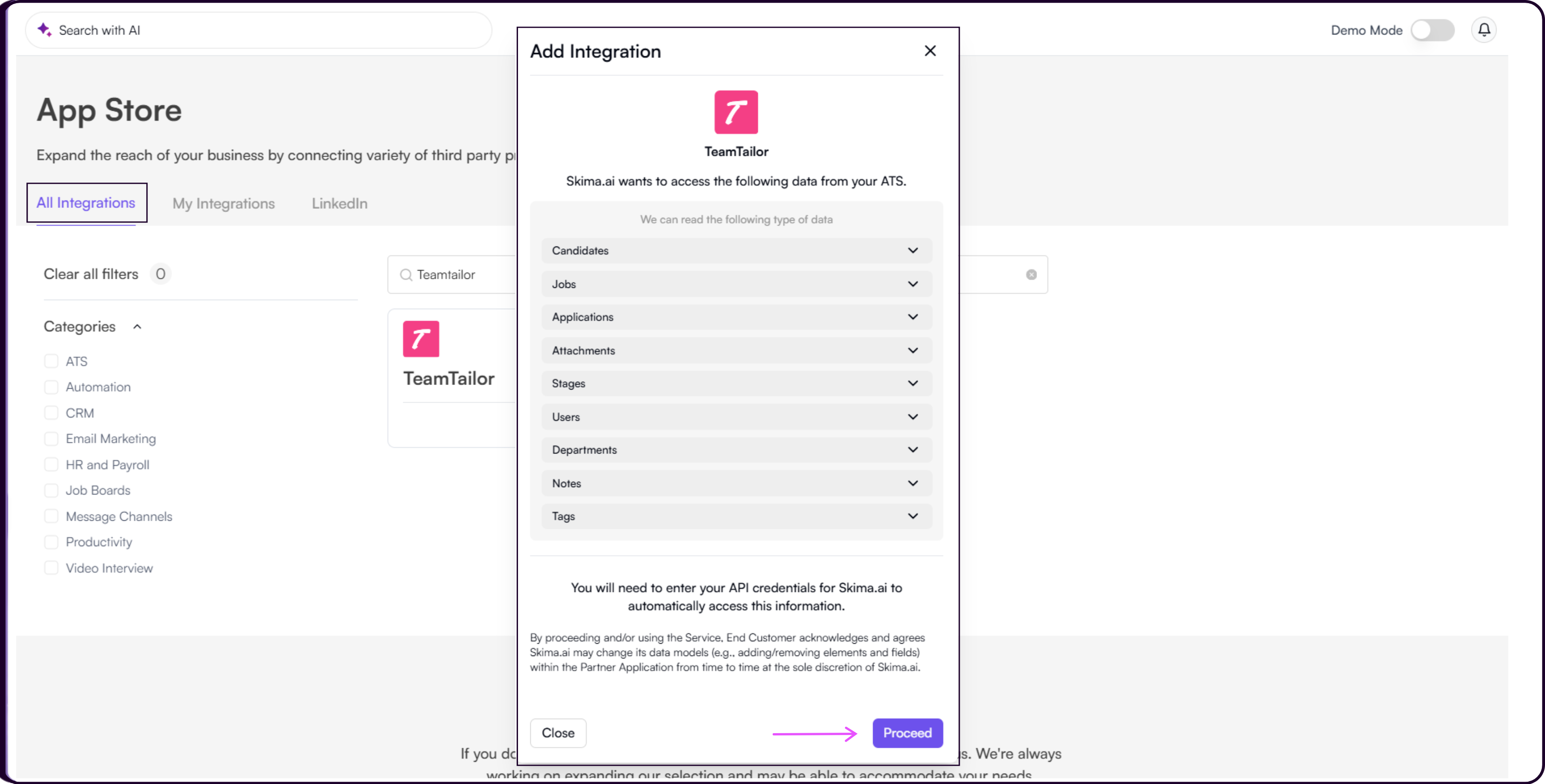
Review the permissions Skima AI requires. These include Candidates, Jobs, Applications, Attachments, Stages, Users, Departments, Notes, and Tags, the minimum set needed to sync your pipeline and enable workflow automation.
Click 'Proceed' to continue.
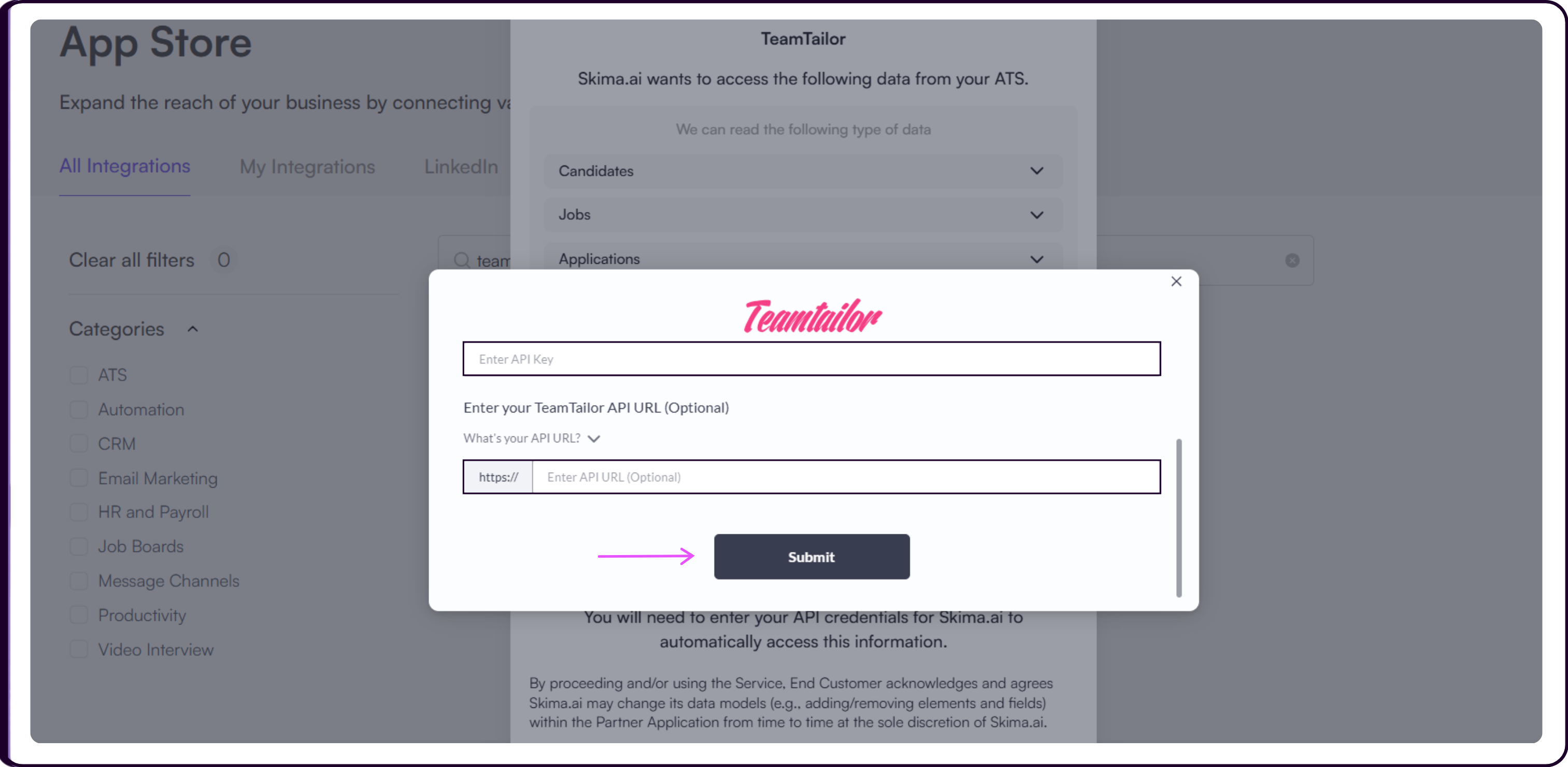
- Enter your Teamtailor credentials: Admin Email ID, Teamtailor API Key, and Teamtailor API URL.
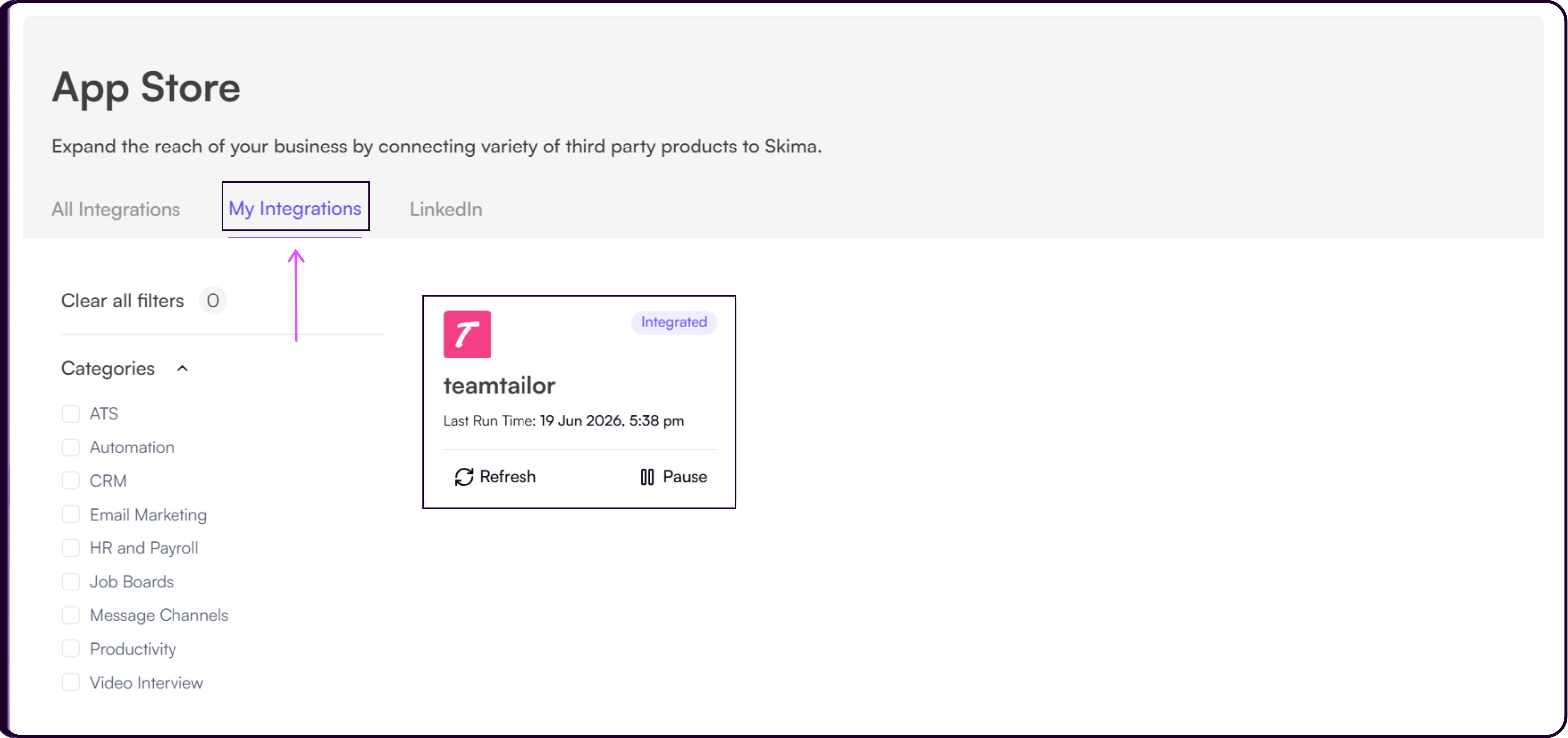
- After successful authorization, Teamtailor will appear under the 'My Integrations' tab in Skima AI, confirming the integration is active and syncing.
Using the Integration
Once your Teamtailor account is connected, Skima AI begins ingesting candidates, jobs, applications, and notes. This enables Skima AI to evaluate candidate and job fit, generate AI match scores, and support workflow automation. The initial sync may take some time depending on the volume of data in your Teamtailor account. You can monitor sync status from the Teamtailor card under 'My Integrations'.
Application Stage Sync
Skima AI keeps application stages aligned with Teamtailor through scheduled sync cycles. Since Teamtailor's stages are tied to individual job applications, Skima AI reads stage updates through job-application records during each sync.
During each sync, Skima AI updates application stages pulled from Teamtailor, refreshes candidate and job data including job descriptions, syncs notes, attachments, and applications, and updates scores based on newly synced information.
Supported sync intervals are 6 hours, 12 hours, and 24 hours. To configure your preferred frequency, open the Teamtailor card under 'My Integrations' and select your interval from the integration settings.
Jobs
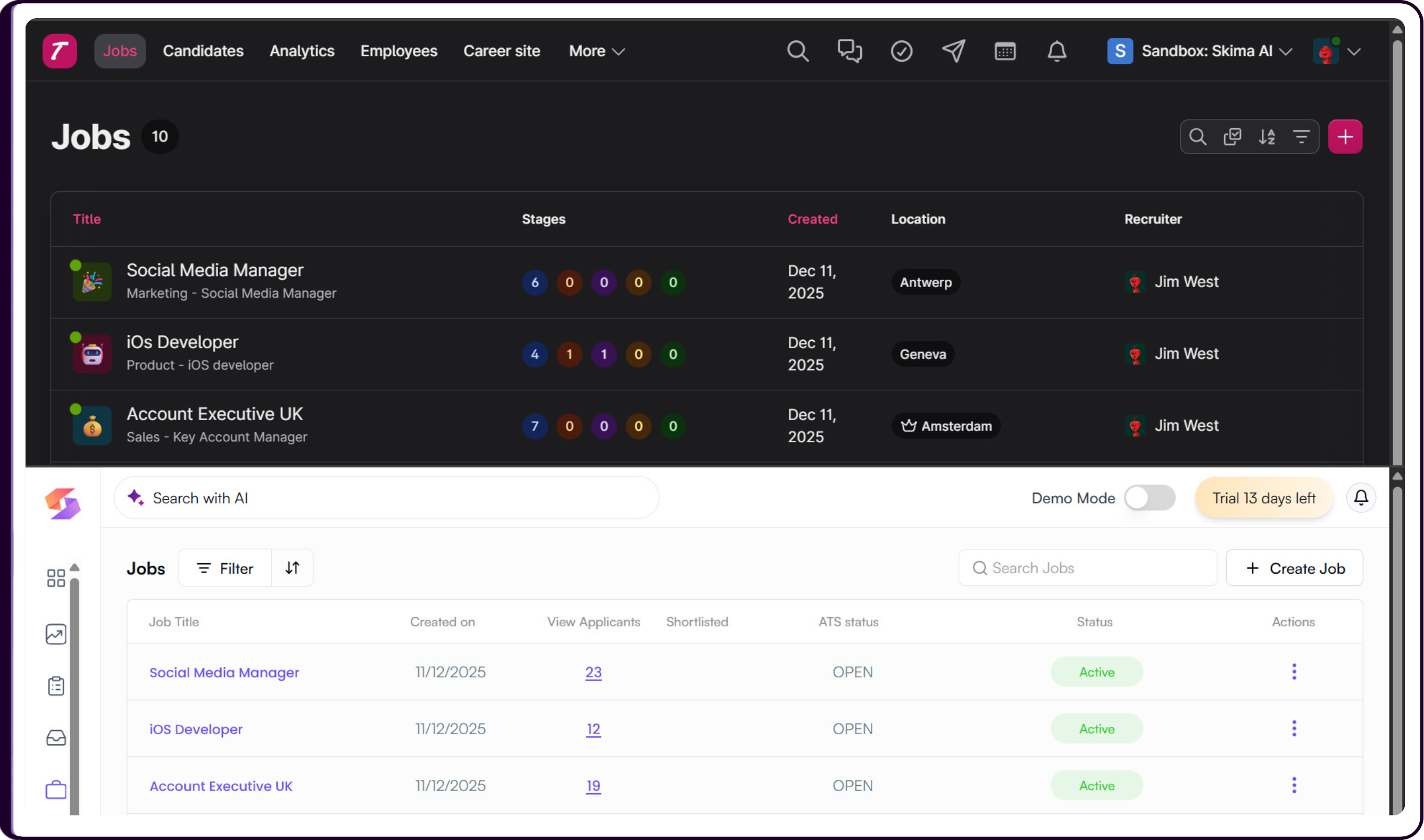
Teamtailor jobs are imported into Skima AI, including full job descriptions, to support candidate and job matching and reporting.
Candidates and Applications
Skima AI can also push updates back to Teamtailor, including custom fields, tags, and notes added during the matching process.
Custom Fields let you push AI scores and match reasons into Teamtailor as structured data against each candidate record. To use this, create the relevant custom fields in Teamtailor first, then map them to Skima AI outputs from the integration settings inside the Teamtailor card in 'My Integrations'.
Tags let you push AI scores into Teamtailor as candidate tags for quick filtering and categorization. Tag values are written back automatically once tag push-back is enabled from the integration settings.
Notes send matching analysis from Skima AI back into Teamtailor so that actions taken in Skima AI are reflected in Teamtailor's activity timeline. Notes are pushed back automatically once enabled from the integration settings.
Disabling the Integration
If you need to stop syncing Teamtailor data or remove the integration entirely, you can disable the connection from either Skima AI or Teamtailor.
If you only want to temporarily stop syncing, use the Pause option inside Skima AI rather than disabling from Teamtailor. Deleting the API key in Teamtailor fully removes authorization and requires you to go through the full setup process again to reconnect.
In Skima AI
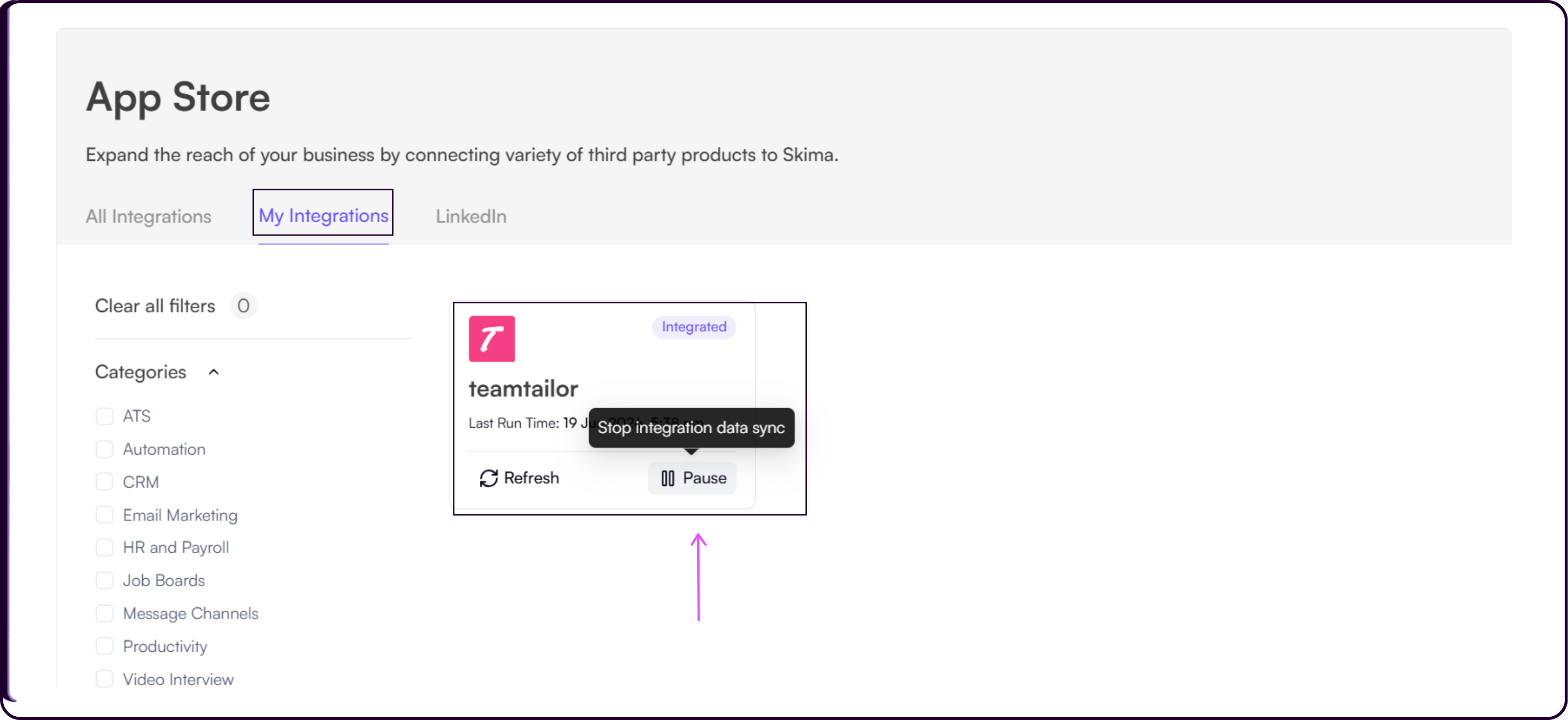
- Navigate to 'Integrations' from the left sidebar.
- Find Teamtailor under 'My Integrations'.
- Click 'Pause' to pause the sync.
In Teamtailor
To remove the key, refer to Teamtailor's API documentation for the steps applicable to your account.
After Disconnecting
Previously synced Teamtailor data remains available in Skima AI. New data will no longer sync, and Skima AI will stop sending updates back to Teamtailor. If you reconnect later, you will need to complete the setup process again from Step 1.